

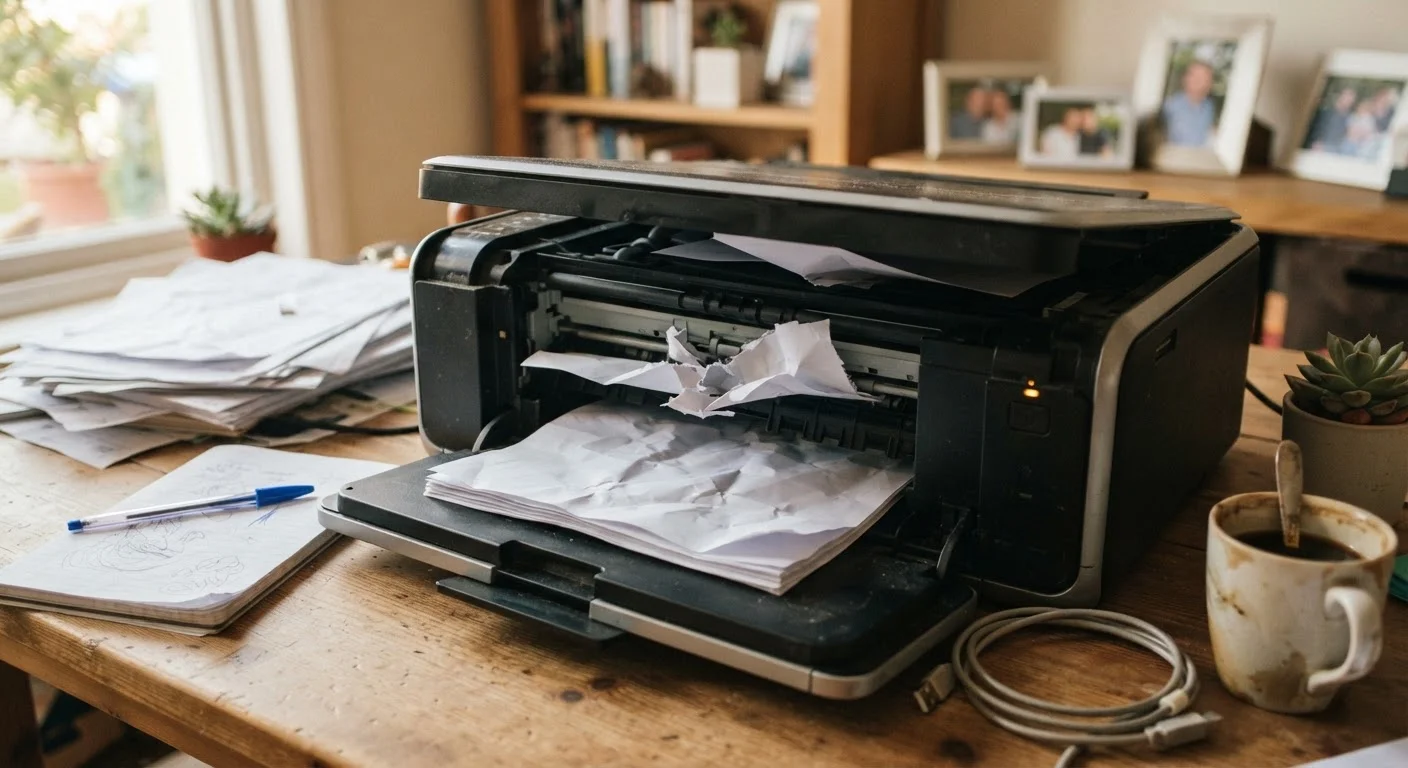
Why Printers Seem Mysterious (But Aren't)
Home printers have a reputation for being temperamental, and it's not entirely undeserved. But the reality is that most failures follow a short list of predictable patterns. When a printer stops responding, flashes cryptic lights, or spits out blank pages, the culprit is almost never a broken machine - it's usually a confused one. Software gets stuck, drivers fall out of date, or a setting quietly changes in the background.
Understanding these patterns means you can fix most issues in under five minutes without a technician, a call to customer support, or an expensive replacement. The fixes below address the mistakes that cause the vast majority of everyday printer problems.
Ignoring a stuck print queue and just sending the document again.
Why it happens: When a job appears to do nothing, the instinct is to click Print again. This adds duplicate jobs to a queue that's already frozen, making the problem worse.
Restarting the printer without power-cycling it properly.
Why it happens: Pressing the power button on a modern printer often puts it into a sleep state rather than a full off cycle, so the underlying communication error never clears.
Using outdated or mismatched printer drivers.
Why it happens: After a major operating system update, old drivers can silently break compatibility. Most users never think to update drivers unless something has visibly stopped working.
Loading the wrong paper size or type without updating print settings.
Why it happens: People often load whatever paper is available without realizing the printer settings still specify a different size or type, causing paper jams or error codes.
Assuming a low-ink or empty-ink warning means the cartridge is fully spent.
Why it happens: Printers estimate ink levels using page counts rather than actually measuring remaining ink. These estimates can be significantly off, especially after a cartridge is reinstalled.
Deeper Causes: What Your Printer Is Actually Telling You
Many printer error messages are less specific than they look. A "communication error" doesn't necessarily mean your printer is broken - it often just means the handshake between your computer and printer got interrupted. Similarly, a low-ink warning can sometimes appear even when there's enough ink to complete your job, because the printer's internal counter has drifted from reality.
Don't Run Head-Cleaning Cycles Repeatedly
Most printers include a print-head cleaning utility, but running it multiple times in a row uses a significant amount of ink and can worsen clogs rather than clear them. Run the cleaning cycle once, print a nozzle-check pattern to evaluate the result, and wait before running it again. Consult your printer's manual for the recommended interval between cleaning cycles.
If your printer is connected over Wi-Fi, it faces some of the same instability challenges as other networked devices. A router reboot often restores the connection just as reliably as any printer-specific fix. For broader wireless device issues in the home, see our guide to stabilizing smart home connections - many of the same principles apply.
And if you find yourself troubleshooting multiple devices at once, it may be worth checking whether the computer sending the print jobs is also underperforming. A slow or overloaded PC can stall print spooler processes in ways that look like a printer problem. Our checklist for slow computers walks through quick performance fixes that can help.
~40%
Printer issues caused by driver or software problems
Industry support data consistently shows that driver conflicts and software errors account for a large share of home printer support tickets.
30 sec
Minimum recommended power-cycle wait time
Printer manufacturers generally recommend unplugging for at least 30 seconds to fully clear onboard memory and reset network states.