
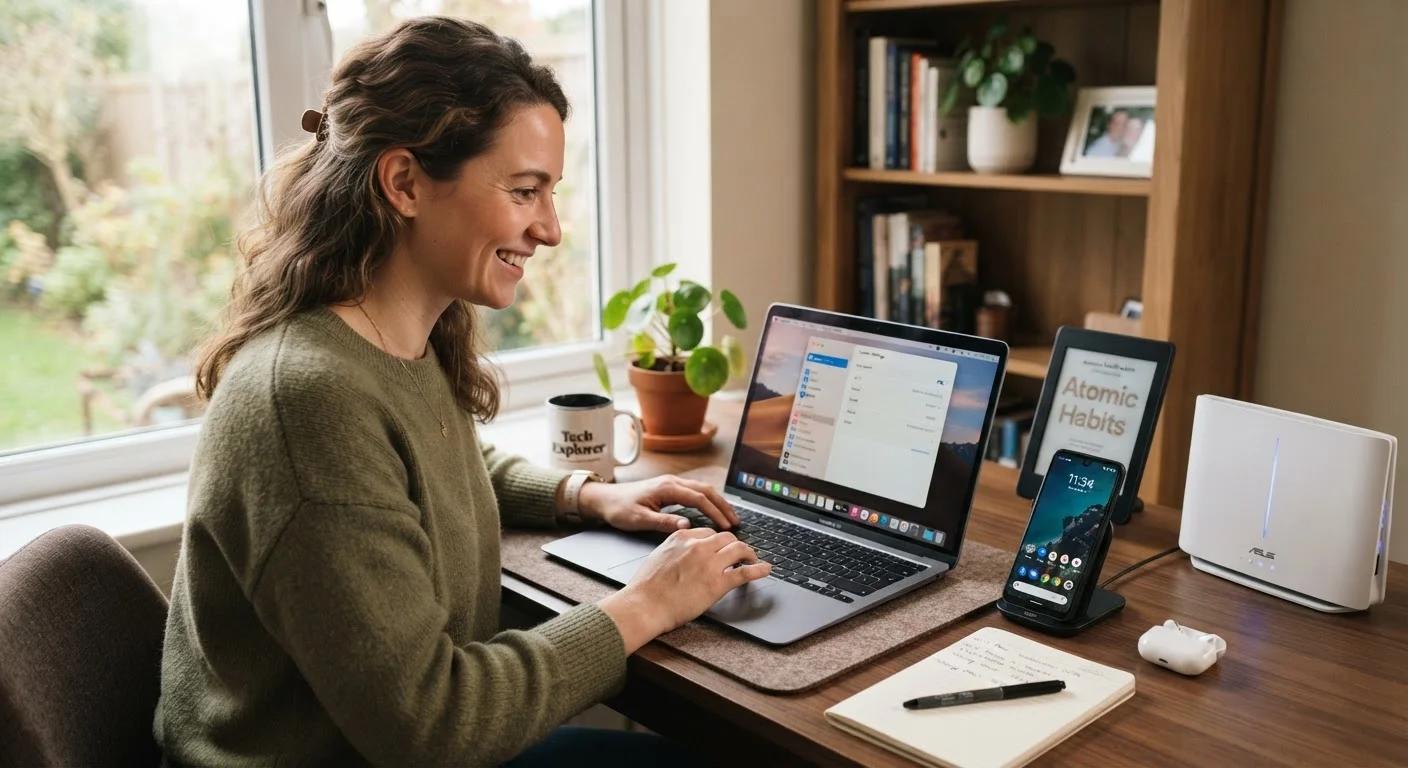
Your devices are probably more capable than you realize
Most people use a fraction of what their devices can actually do. That's not a criticism - it's a design reality. Phones, laptops, TVs, and routers ship with dozens of features that never surface during setup, and manufacturers rarely advertise what's already included. The result is that a lot of households are quietly underusing hardware they've already paid for.
The good news: unlocking more capability rarely requires buying anything new. It usually means exploring what's already there. Whether you're trying to speed up a sluggish laptop, get better Wi-Fi coverage, or just understand what your gadgets can actually do, the tips below are a practical starting point. If you're thinking further ahead, our room-by-room home tech setup guide covers how to think about technology across your whole home.
You probably don't need a new device yet
The consumer tech industry moves fast, and it's easy to assume an older device is simply past its useful life. In many cases, though, the limiting factor is configuration or storage rather than hardware capability. Before budgeting for a replacement, it's worth methodically ruling out software and settings as the root cause of any frustration.
Practical ways to get more from what you already own
Audit your settings before assuming something is missing
Manufacturers frequently ship devices with features disabled by default - whether to save battery, limit data use, or simplify the out-of-box experience. Before concluding your phone, tablet, or laptop can't do something, spend ten minutes inside the settings menu. On most smartphones, for example, you'll find gesture controls, focus modes, and display scheduling buried under menus that are easy to scroll past during initial setup.
A methodical walk through your device's settings - section by section - often surfaces tools you've been working around unnecessarily. This is one of the highest-return, zero-cost things you can do.
A ten-minute settings audit often surfaces features you never knew you had.
Free up storage to restore performance
When a device's storage fills up, performance degrades noticeably - apps launch more slowly, cameras hesitate before saving photos, and the operating system itself struggles to write temporary files it needs to function. The fix is almost always simpler than people expect.
Start by identifying what's taking up the most space. Both Android and iOS have built-in storage management screens that break usage down by category. Old downloads, duplicate photos, and apps you haven't opened in months are usually the biggest culprits. Offloading photos to a cloud service or an external drive can reclaim significant space without deleting anything permanently. Our explainer on what storage and memory actually do can help you understand exactly what you're managing.
Clearing storage is often the fastest way to make an aging device feel responsive again.
Restart and update more often than you think necessary
Many people leave devices running for days or weeks without a restart. Over time, apps accumulate memory they don't release, background processes stack up, and performance slows. A simple restart clears this automatically - no technical skill required.
Software updates deserve similar attention. Beyond security patches, updates frequently introduce new features, interface improvements, and efficiency gains. Reading the release notes (usually one tap away in your update screen) takes about a minute and often reveals functionality you didn't know was added. If your device feels sluggish, check these steps for restoring speed to a slow computer before assuming it's time for a replacement.
Regular restarts and updates are the lowest-effort maintenance habits with the highest payoff.
Log into your router and explore what's there
The vast majority of households have never opened their router's settings page. That's understandable - it sounds intimidating. But the interface is usually straightforward, and what's inside is genuinely useful: the ability to see every connected device, set up a separate guest network, schedule Wi-Fi access for specific devices, and prioritize bandwidth for video calls or streaming.
Accessing it typically means typing a local address (like 192.168.1.1) into a browser and logging in with credentials printed on the router itself. Our detailed walkthrough of everything your home router's settings page can do is a good place to start if you've never been inside before.
Your router's settings panel contains tools most households never use - but probably should.
Turn on accessibility features - even if you don't think you need them
Accessibility settings were designed for users with visual, motor, or hearing differences, but many of them are simply good design that benefits everyone. Text size adjustments reduce eye strain. Display zoom makes information easier to scan. Voice control lets you operate your phone hands-free while cooking or driving. Haptic feedback settings can make your interactions feel noticeably more satisfying.
On both iOS and Android, these options live under Settings → Accessibility. On Windows and macOS, they're typically under Ease of Access or Accessibility in System Preferences. Worth a browse regardless of your situation.
Accessibility features aren't niche - many of them improve the experience for any user.
Use your TV remote's lesser-known functions
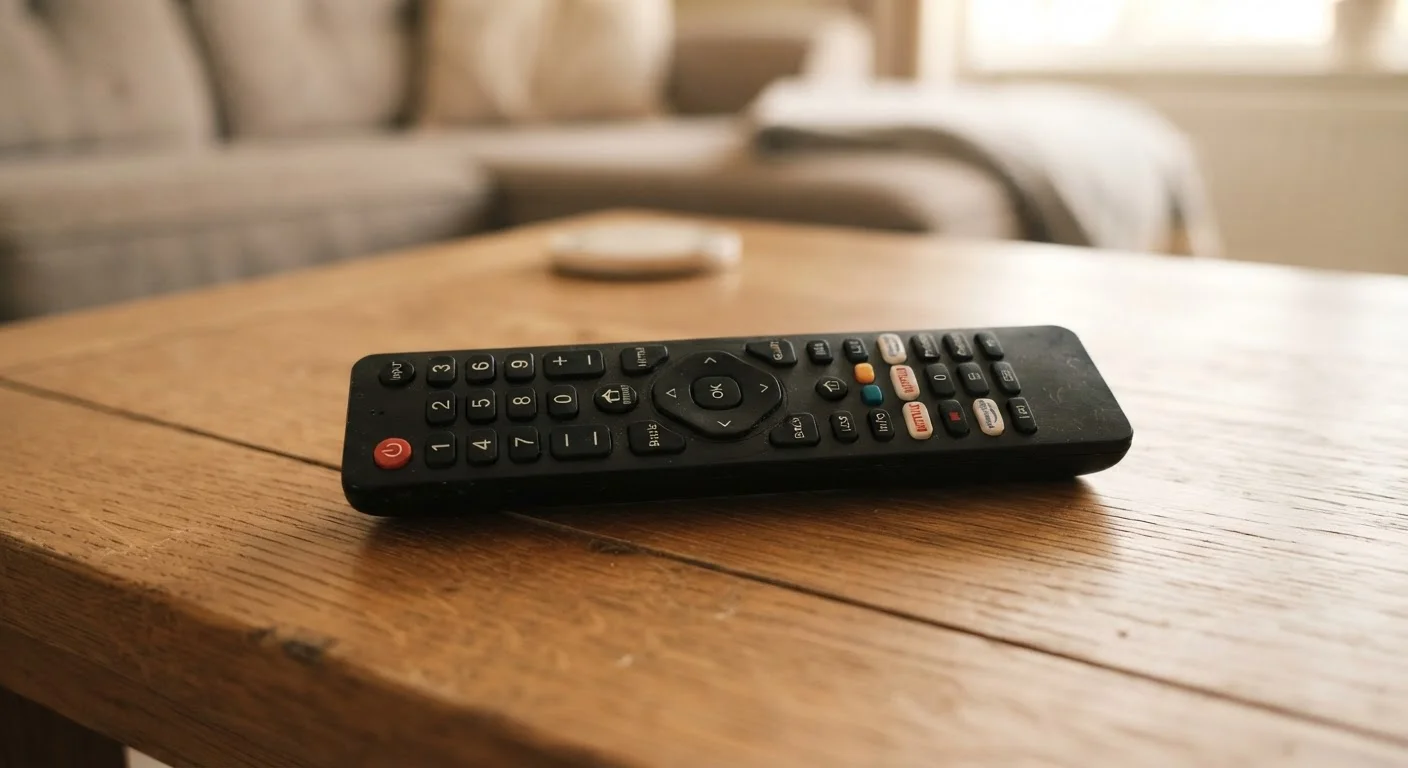
Modern TV remotes - especially those bundled with smart TVs - control far more than volume and channel. Many include quick-access buttons for picture mode adjustments, input switching, and direct app launching that most users never discover. Some remotes double as voice search devices or allow you to control connected soundbars and streaming sticks without switching inputs manually.
If you've never read through what your remote's buttons actually do, our plain-English reference to every button on a standard TV remote is a fast, practical read.
Most TV remotes have useful functions that go undiscovered simply because no one reads the manual.
Secure your devices without overhauling your habits
Getting more from a device also means protecting what's already on it. Strong, unique passwords for each account, two-factor authentication on email and financial apps, and keeping software updated are the three habits that address the most common vulnerabilities. None of these require technical expertise - they're mostly a matter of spending thirty minutes getting set up properly once.
For a practical, jargon-free approach, see our guide to keeping everyday devices secure without becoming a tech expert.
A one-time security setup protects everything else you use your device for.
Start with one device, not all of them
Trying to audit every gadget in your home at once leads to decision fatigue and nothing getting done. Pick one device - the one that bothers you most - and spend 20 focused minutes exploring its settings and storage. That small effort often produces a noticeable improvement and builds confidence to do the same elsewhere.
The bigger picture: capability you already have
None of the steps above require a tech background or significant time investment. What they share is a willingness to look past the obvious surface of a device and explore what's underneath. That habit - of checking settings, reading update notes, and testing built-in features before assuming a limitation - compounds over time into a meaningfully better experience with everyday technology.
If you're thinking about how your devices fit together at home, the Home Tech Setup hub has practical guidance on planning and managing technology room by room. And if privacy and reliability are on your mind, our overview of the honest trade-offs of owning a smart home device is a grounded read before adding anything new to the mix.