
Power, Volume, and Channel Controls
These are the buttons you've been pressing on autopilot for years - but a few details are worth knowing.
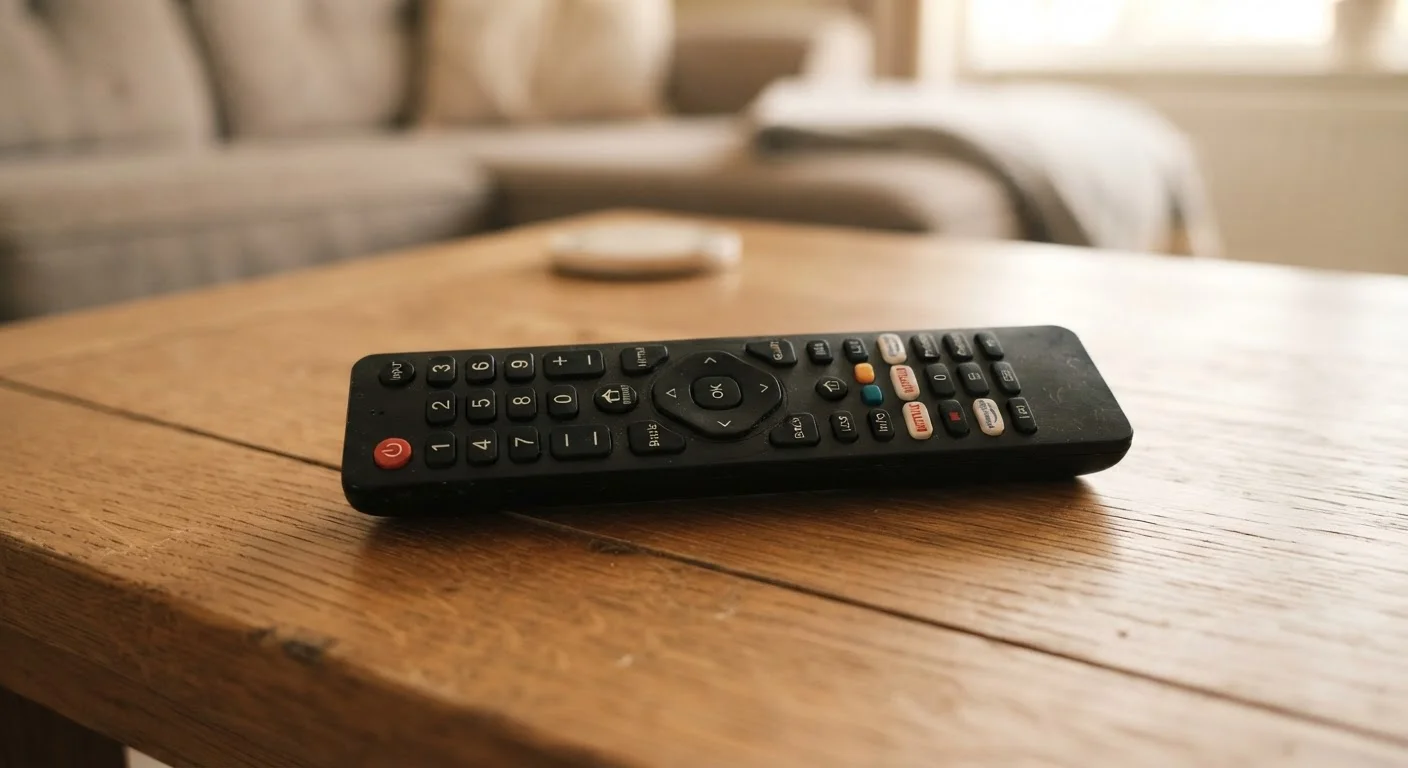
- Power: Turns the TV on or off. On smart TVs, pressing this often puts the set into a low-power standby mode rather than a true off state.
- Volume Up / Down: Adjusts the TV's built-in speaker output. If you have a soundbar connected, these may control that instead, depending on your setup.
- Mute: Silences audio instantly. Press again to restore sound at the same level - handy for commercials or quick interruptions.
- Channel Up / Down: Steps through available channels in order. Only relevant when watching live TV via antenna or cable - these do nothing inside a streaming app.
- Number Pad (0-9): Type a channel number directly instead of stepping through one at a time. On some smart TVs, these doubles as a keyboard shortcut for apps.
If your remote controls volume but not channel - or vice versa - it may be programmed to operate a different device, like a cable box. Check your TV's input setting. See our smart TV setup guide if you're starting fresh.
Navigation and Playback Buttons
These buttons control menus, apps, and media - and they're where most of the confusion happens.
| Typical button count | 40-60 buttons on a full-size remote |
| Most used buttons | Volume, Channel, Home, and Back |
| Input/Source button purpose | Switches between connected devices (HDMI, antenna, apps) |
| Closed Captions shortcut | Usually labeled CC, Subtitle, or accessed via Settings |
| Guide button | Opens on-screen program schedule for live TV |
| Info / Display button | Shows channel name, show title, resolution, and time on screen |
- Home: Returns you to the TV's main menu or launcher screen regardless of what you're watching. Think of it as the reset button for your viewing session.
- Back: Goes one step backward in a menu or app - similar to a browser's back button.
- OK / Select / Enter: Confirms your selection. The center button on a directional pad serves this role on most remotes.
- Directional Pad (arrow keys): Moves the cursor or highlight through on-screen menus. Usually arranged as a ring or cross shape.
- Play / Pause: Starts or freezes playback in streaming apps and connected players. On many modern remotes, it's a single toggle button.
- Rewind / Fast Forward: Jumps backward or forward within recorded or streamed content. In live TV, rewind only works if your TV or service supports DVR-style buffering.
- Stop: Ends playback entirely. Less common on newer remotes - Pause does most of that work now.
Understanding the difference between built-in smart TV apps and plug-in streaming devices can change how these buttons behave. Our article on smart TVs vs. streaming sticks explains why.
Settings, Display, and Specialty Buttons
The buttons in this group are used less often, but they unlock genuinely useful features once you know what they do.
Your Remote May Look a Little Different
Manufacturers arrange and label buttons in their own way - Samsung, LG, Sony, and Roku remotes all vary. If a button described here isn't visible on yours, check your TV's on-screen Settings menu or the manufacturer's support page. The function almost certainly still exists; it may just be buried in a menu rather than on the remote itself.
- Menu / Settings (gear icon): Opens the TV's full settings panel - where you adjust picture quality, audio, network, and accessibility preferences.
- Input / Source: Cycles through available signal sources: HDMI ports, antenna, and built-in apps. Use this to switch between your game console and streaming device.
- Info / Display: Overlays on-screen information like channel name, show title, current time, and sometimes picture resolution. Press once to show, again to dismiss.
- Guide: Opens a scrollable program grid for live channels - only active when watching antenna or cable TV.
- CC / Subtitle: Toggles closed captions on or off. Some remotes require you to hold this button or access it through the Settings menu.
- Picture / Zoom / Aspect: Changes how the image fills the screen. Useful if you see black bars on the sides or top of the picture.
- SAP / Audio: Switches between available audio tracks - commonly used to select an alternate language.
- Sleep Timer: Schedules the TV to power off automatically after a set period.
Many of these settings can also be reached through on-screen menus, so don't worry if your remote is missing a few. For more overlooked functionality, see getting more from devices you already own.
Input / Source
The signal your TV is displaying - such as HDMI 1, antenna, or a streaming app. Switching inputs lets you move between a game console, cable box, or streaming device connected to your TV.
Aspect Ratio
The proportional relationship between a picture's width and height. Common ratios are 16:9 (widescreen) and 4:3 (older square-ish format). The Picture or Zoom button often cycles through these.
SAP (Secondary Audio Program)
An alternate audio track sometimes broadcast alongside a TV channel - commonly used for a Spanish-language audio option or described video for accessibility.
HDMI-CEC
A feature that lets devices connected via HDMI communicate with each other. When active, one remote can sometimes control volume or power across multiple connected devices.