
Start With the Network - Everything Else Depends on It
Before spending a dollar on a new webcam or desk accessory, get your internet connection sorted. A reliable network is the foundation every other part of your home office sits on. If your connection drops during a client call or your uploads crawl, no amount of premium gear elsewhere compensates.
The single most effective upgrade most remote workers can make is plugging directly into their router with an ethernet cable rather than relying on Wi-Fi. Wireless connections share airspace with neighboring networks, smart home devices, microwaves, and more. A wired connection sidesteps almost all of that interference. If running a cable to your office isn't practical, a powerline adapter - a device that sends network signals through your home's electrical wiring - is a reasonable middle-ground option.
Router placement matters more than most people realize. Wi-Fi signal weakens through walls and floors. If your router sits at the opposite end of the house from your office, consider a Wi-Fi extender or a mesh network system to bring a strong signal closer to where you actually work.
Check what speeds you're actually getting, not just what your plan promises. Free browser-based speed tests can show you real download and upload rates. For video conferencing, a stable upload speed is especially critical. How much bandwidth you actually need depends on what you're doing, but video calls are more sensitive to fluctuation than raw speed alone.
~25 Mbps
Recommended upload speed for stable HD video conferencing
General guidance from major video conferencing platform documentation suggests HD group calls typically require 3-5 Mbps upload per stream, with headroom recommended for reliability.
3-2-1
Copies of data recommended by backup best practices
The 3-2-1 backup rule - three copies, two media types, one off-site - is a widely cited standard among IT professionals and data recovery specialists.
Your Computer: Don't Overlook What's Already in Front of You
A fast internet connection feeding a sluggish computer still produces a frustrating workday. Before assuming you need new hardware, it's worth diagnosing what's actually slowing things down. Several simple fixes - clearing startup programs, freeing up storage, or adding RAM - can meaningfully restore performance to an older machine.
If your work involves video editing, large spreadsheets, or running multiple applications simultaneously, processor speed and available memory (RAM) matter more than most specs. For standard office tasks - email, documents, video calls - most computers made in the last five years are capable enough once unnecessary background processes are cleared.
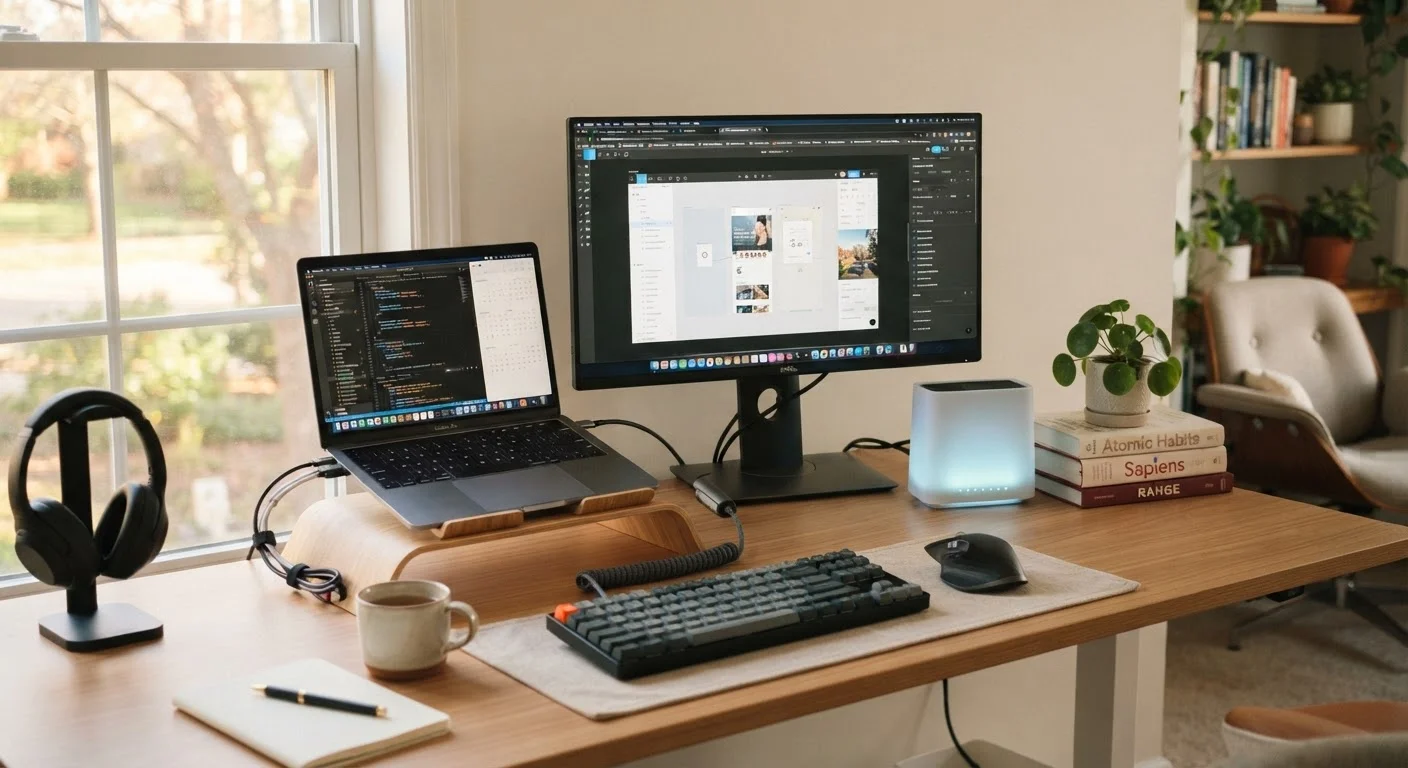
One of the highest-impact upgrades for any desk worker is adding a second monitor. Research consistently suggests that working across two screens reduces the time spent switching between applications. It's a functional improvement, not a luxury.
Use a wired ethernet connection for your primary work computer whenever possible.
Wi-Fi is convenient but inherently less stable than a physical cable connection. Interference, distance, and network congestion can all degrade wireless performance unpredictably - especially during video calls when consistency matters most.
Add a second monitor to your workstation before upgrading other peripherals.
The ability to reference a document on one screen while working on another reduces context-switching and mental load. It's one of the most cost-effective productivity improvements available for desk-based work.
Prioritize audio quality over video quality for video conferencing setups.
Listeners tolerate imperfect video far more than poor audio. Echo, background noise, and muffled speech make calls harder to follow and create fatigue for other participants over time.
Enable two-factor authentication on all work-related accounts.
Passwords alone are insufficient protection against credential theft. Two-factor authentication adds a verification layer that significantly reduces the risk of unauthorized account access, even if a password is compromised.
Run a speed test during your normal working hours to check real-world internet performance.
Internet speeds vary by time of day due to network congestion. Testing during peak hours gives a more accurate picture of what you're working with than the speed your plan advertises.
Audio and Video: What Actually Makes You Look (and Sound) Professional
Here's a counterintuitive truth about video calls: your audio quality matters more to colleagues than your video quality. Muffled, echoing, or noisy audio is distracting and exhausting for listeners. A choppy video feed is annoying - but people can tolerate it. Poor audio makes calls genuinely harder to follow.
Most laptop microphones pick up keyboard clicks, room echo, and background noise. A dedicated USB microphone or a headset with a close-proximity mic makes a significant difference. Even an inexpensive headset with a built-in mic typically outperforms a laptop's built-in microphone for call clarity.
For video, lighting is the variable that makes the biggest difference - more than the camera itself. Sitting with a window or lamp in front of you (not behind you) dramatically improves how you appear on screen. If you work in a darker room, a small ring light or desk lamp aimed at your face is a practical fix.
A webcam upgrade is worth considering if your built-in camera produces a noticeably blurry or dark image even with good lighting. But address lighting first - it's free.
Security and Backup: The Part Most People Skip Until It's Too Late
A home office that handles work data carries real responsibilities around security. Using your work network for everything - personal streaming, smart home devices, and professional tasks - can introduce unnecessary risk. If your router supports it, setting up a separate guest network for personal or IoT devices keeps work traffic isolated.
Strong, unique passwords for every work account and enabling two-factor authentication (a second verification step beyond your password) are baseline practices. A password manager application can handle the complexity of maintaining unique credentials without requiring you to memorize them. For more on protecting yourself digitally, the Staying Safe Online hub covers the essentials clearly.
Data backup is frequently ignored until a hard drive fails or a file is accidentally deleted. The general principle worth following is the 3-2-1 rule: keep three copies of important data, on two different types of storage, with one copy stored off-site or in a cloud service. Cloud backup services automate much of this once configured.
If you're also thinking about other tech decisions around the house, building out smart home tech thoughtfully follows similar prioritization logic - start with reliable infrastructure, then layer in features.