
Why Social Media Privacy Settings Matter
Social platforms are designed to encourage sharing - which means their default settings typically favor maximum visibility. When you sign up for a new account, your profile, posts, and personal details are often visible to anyone on the internet unless you actively change that. Over time, this open-by-default approach can expose far more about your life than you intend.
The risk isn't only about embarrassing posts. Personal details scattered across your profiles - your birthday, employer, hometown, and daily routines - can be pieced together by bad actors for identity theft, phishing scams, or targeted harassment. Data brokers also scrape social media to build profiles they sell to third parties. If you're new to the broader topic of digital privacy, our complete starter's resource on online privacy provides useful foundational context before you dive into settings.
The good news: tightening your social media privacy doesn't require technical knowledge. It takes time rather than expertise, and the steps below are the same whether you're on a phone or a laptop.
What you will need
What You'll Need Before You Start
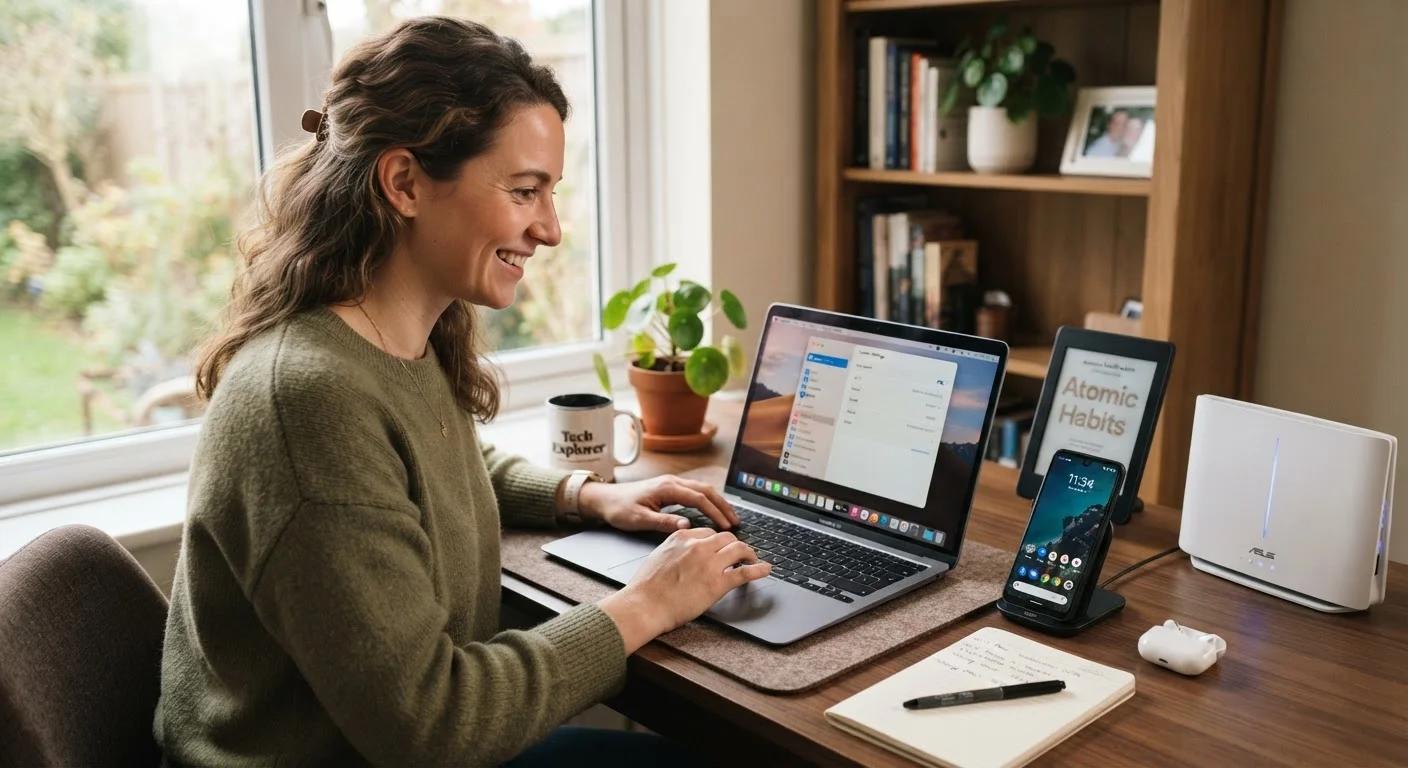
Before working through each platform, gather what you need and plan for a focused block of time. Rushing through settings increases the chance of missing something important.
Platform Settings Menu
The built-in settings panel on each social platform where privacy and security controls are managed.
Email or Phone for 2FA
Used to verify your identity when enabling two-factor authentication on your accounts.
Password Manager
Helps you maintain strong, unique passwords for each platform without having to memorize them.
Platforms Update Settings Without Warning
Social media companies periodically introduce new features that come with new default privacy settings - often set to the most open option. A privacy lockdown you completed six months ago may have been partially undone by a platform update. Make a habit of revisiting your settings every two to three months to catch these changes before they expose information you intended to keep private.
Step-by-Step: Locking Down Your Settings
Work through each step below for every social media platform you use. The specific menu names vary by platform, but the categories of settings - audience, discoverability, location, connected apps, and security - exist on all major social networks.
Navigate to Privacy Settings on Each Platform
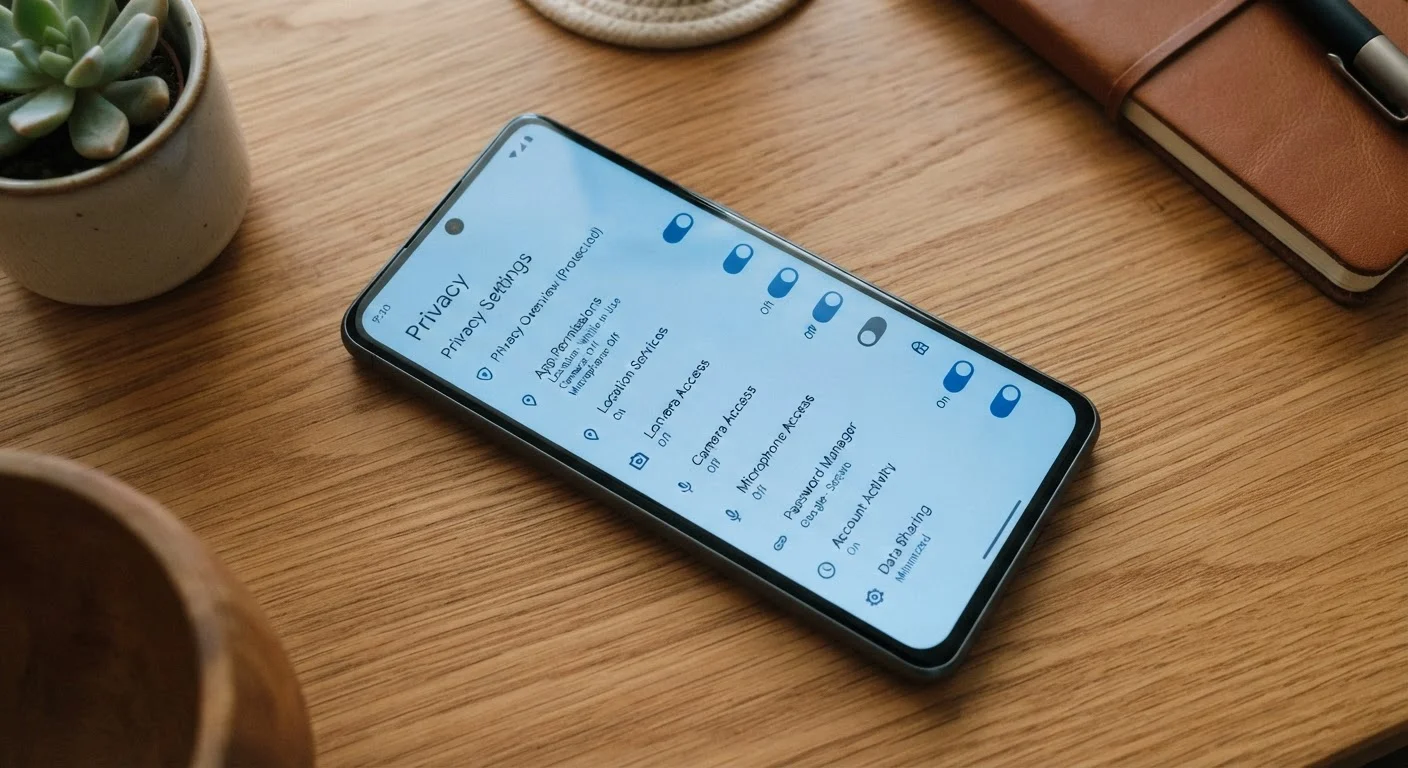
On most platforms, privacy settings are buried inside a general Settings or Settings & Privacy menu. On mobile apps, tap your profile icon or a hamburger menu (three lines) to find it. On desktop, look for a dropdown near your profile photo. Locate sections specifically labeled Privacy, Audience, or Visibility - these control who can see your posts, profile details, and contact information.
Set Your Default Audience to Friends or Followers Only
Change the default audience for new posts from Public to Friends, Followers, or Only Me, depending on the platform's options and your preference. This ensures that anything you share going forward is not visible to strangers or search engines. On platforms that distinguish between followers and close connections, choose the most restrictive option that still fits your social needs.
Restrict Who Can Find and Contact You
Look for settings that control discoverability - such as whether people can find your account by searching your email address or phone number, and whether your profile appears in search engine results. Disable these where possible. Also set direct messages and friend or follow requests to require mutual connections or manual approval, rather than allowing anyone to contact you freely.
Turn Off Location Sharing in Posts and Stories
Many apps automatically embed your location in photos and posts unless you disable this. Go to your phone's app permissions (found in your device's main Settings app under the platform's name) and set Location access to Never or While Using the App - never Always. Also check within the social platform's own settings for any location history or precise location features and turn them off.
Audit and Remove Connected Third-Party Apps
In your platform settings, find the section for Apps, Connected Apps, or Integrations. Review every app listed there. If you no longer use it - or don't recognize it - revoke its access immediately. These apps may still be pulling data from your account in the background even if you deleted them from your phone long ago.
Review Profile Fields and Remove Sensitive Details
Open your public profile and view it as a stranger would. Look critically at what personal information is visible: your phone number, email address, birthday, employer, hometown, and relationship status. Remove or hide any field that isn't essential to how you use the platform. Each piece of data you remove is one fewer data point available to scammers, data brokers, or advertisers. For more on how shared details accumulate into real risk, see our guide on oversharing habits that put your identity at risk.
Enable Two-Factor Authentication
In the Security section of your settings, enable two-factor authentication (2FA). This requires a second verification step - typically a code sent to your phone or generated by an authenticator app - when logging in from a new device. Even if someone obtains your password, they cannot access your account without that second factor. An authenticator app is generally more secure than SMS text codes.
Third-Party Apps Can Bypass Your Settings
Any app or game you've connected to a social account may have access to your profile data, friends list, and more - even if your profile is set to private. Revoking access from apps you no longer use is a critical step that many people skip. Navigate to the 'Apps and Websites' or 'Connected Apps' section of each platform's settings to review and remove these connections.
Maintaining Your Privacy Over Time
Adjusting your settings once is a strong start, but privacy upkeep is an ongoing habit. Platforms introduce new features, reset options after updates, and sometimes migrate settings to new menus without clear notification. Set a reminder every two to three months to do a quick review.
It also helps to think about privacy holistically. Your social accounts are just one piece of your digital footprint. Understanding what data brokers know about you is a natural next step once your social profiles are locked down. And if you share devices or accounts with children, our guide for parents on keeping children safer online covers additional considerations worth reviewing.
Do a Full Audit While You're at It
While you're in your privacy settings, it's a good time to review your passwords and enable two-factor authentication on each account. Our personal online security audit checklist walks you through every account setting worth reviewing - no tech expertise required.