
Why Preparation Matters Before You Touch the New Phone
The excitement of unboxing a new phone can push you to start the setup immediately - but the biggest mistakes happen in those first few minutes. Jumping straight into the new device without securing your old one is the surest way to lose photos, contacts, or app data you can't get back.
The good news: both Android and iPhone have made the transfer process more reliable than ever. Built-in tools handle most of the heavy lifting, but they work best when you've done a few things in advance. Think of this as a two-phase process - prepare the old phone, then set up the new one.
If you're also planning to bring that new phone into a connected home setup, our guide to building a smart home the right way covers how your phone fits into the broader picture.
What you will need
Step-by-Step: Backing Up and Transferring Your Data
Follow these steps in order. Each one builds on the last, and the sequence matters - especially making sure a backup is confirmed complete before you begin the transfer.
Confirm your cloud backup is turned on and up to date
iPhone: Go to Settings → tap your name → iCloud → iCloud Backup. Tap Back Up Now and wait for it to complete. Note the date and size of the last backup when it finishes.
Android: Go to Settings → System → Backup (the exact path varies slightly by manufacturer). Make sure Back up to Google Drive is toggled on, then tap Back up now.
Save anything stored only locally on your phone
Cloud backups don't always catch everything - particularly photos taken in offline mode, voice memos, or files saved to local storage rather than a synced folder. Before proceeding, manually copy any files you're uncertain about to a computer or cloud storage service.
Also take a screenshot of your home screen layout if you want to recreate it easily on the new device.
Start the new phone and choose your transfer method
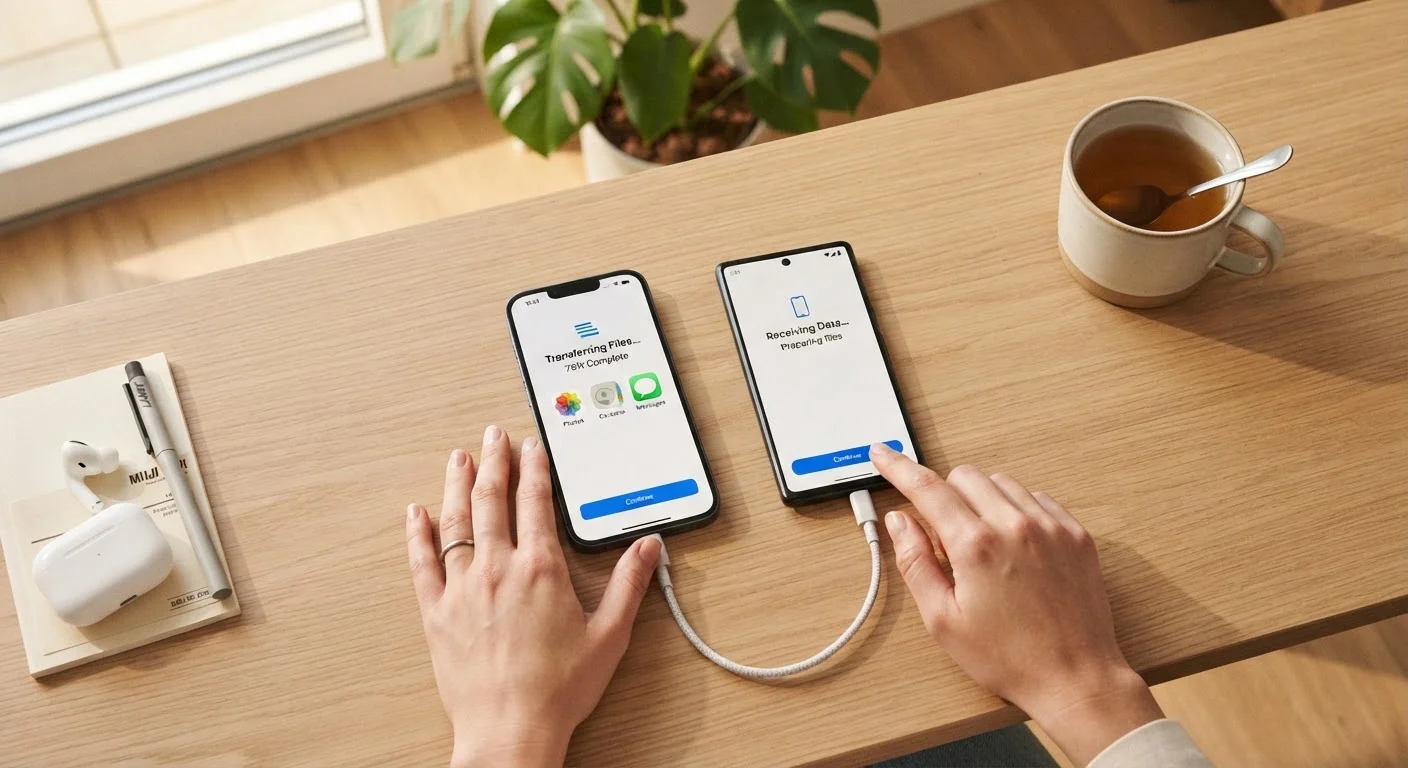
Power on your new phone. Both platforms offer a direct transfer option during initial setup - this is usually the fastest path.
- iPhone to iPhone: Choose Transfer from iPhone when prompted, then bring your old iPhone close. Follow the on-screen instructions to transfer over Wi-Fi or with a Lightning/USB-C cable.
- Android to Android: Most Android phones display a Copy your data option early in setup. You can transfer via a USB cable (usually the fastest), Wi-Fi, or restore from your Google account backup.
- Switching from iPhone to Android (or vice versa): Use Google's Switch to Android app (iOS) or Apple's Move to iOS app (Android), both available in their respective app stores. These handle contacts, photos, and calendar data - but not paid apps.
Sign in to your primary account and let it sync
Once the transfer is done, sign in to your Apple ID or Google account if you haven't already. This triggers your contacts, calendar, and purchased apps to sync automatically.
Give the phone a few minutes - or longer if your photo library is large - before judging whether everything arrived. Cloud content downloads in the background and may not appear instantly.
Verify the transfer before resetting your old phone
Go through the checklist in the next section of this article before you do anything irreversible with the old device. Once you've factory reset it, recovery options are very limited.
If everything looks good, you can then sign out of your accounts on the old phone and perform a factory reset through Settings → General → Transfer or Reset iPhone (iOS) or Settings → System → Reset options (Android).
Don't Reset Your Old Phone Too Soon
It's tempting to wipe the old phone the moment setup feels complete, but hold off for at least 24-48 hours. Use your new phone normally and note anything that seems missing. Once a factory reset is performed, recovering data that didn't transfer is extremely difficult or impossible.
After the Transfer: What to Double-Check
Even a smooth transfer can leave a few gaps. Once your new phone is running, spend five minutes on this checklist before you do anything with your old device:
- Contacts: Open the contacts app and scroll through. If your contacts were tied to your Google or Apple account, they should appear automatically.
- Photos: Check your camera roll and any albums you had organized. Cloud-synced photos restore from the service, not the transfer, so give it time to download.
- Apps: Most will reinstall, but some may ask you to log back in or reauthorize subscriptions - especially banking and streaming apps.
- Two-factor authentication (2FA): Authenticator apps typically do not transfer automatically. If you use an app like Google Authenticator or similar, you'll need to migrate those accounts manually before wiping the old phone.
- Text messages: iMessage threads transfer well between iPhones; Android SMS transfers depend on the method used. Spot-check a few key conversations.
Once you've confirmed everything is in place, you're in good shape to trade in or reset the old device. For ongoing security on your new phone, simple habits that keep everyday devices secure is worth a read. And if you're setting up other devices at home around the same time, our smart TV setup walkthrough follows a similarly calm, step-by-step approach.