
How to Get Into Your Router's Settings
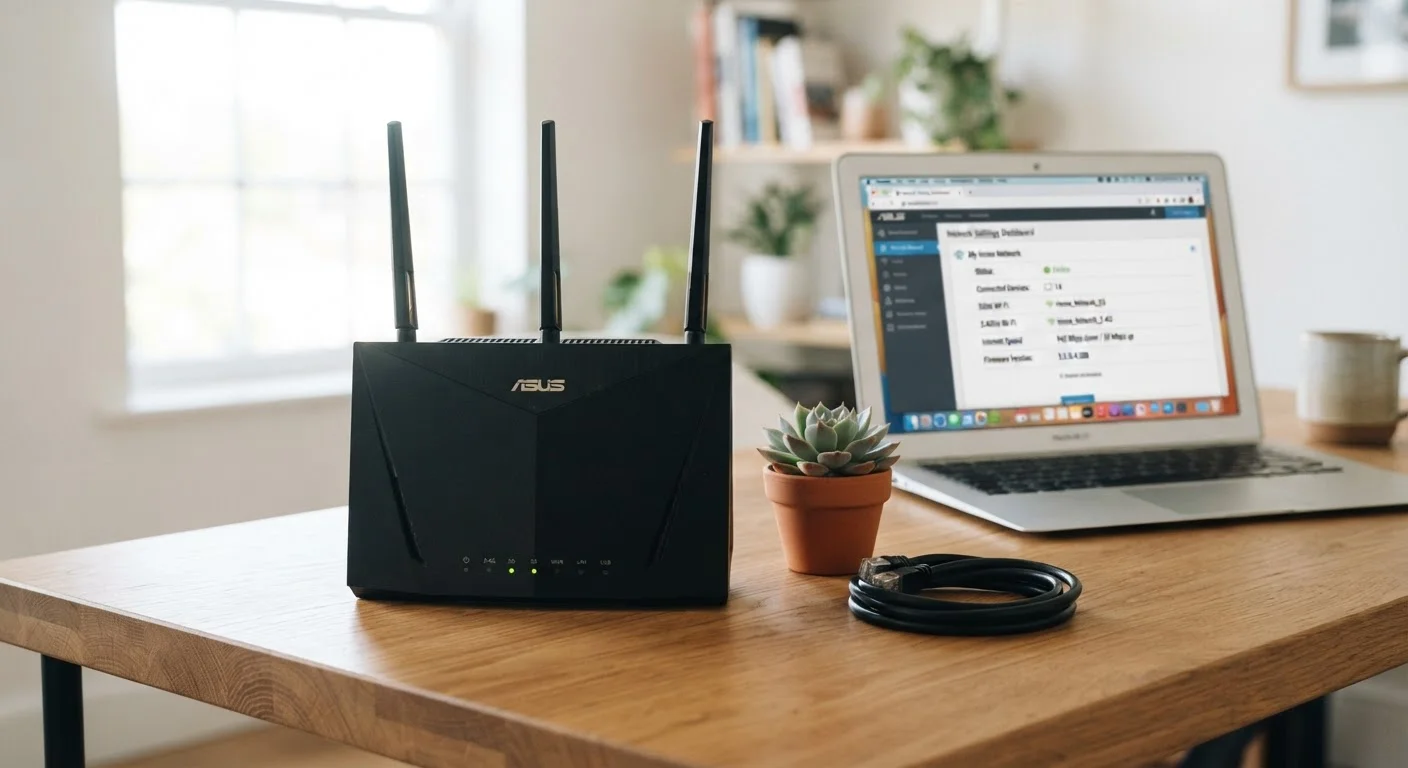
Every home router has a web-based settings page - a control panel you can access from any browser on your home network. To reach it, type your router's IP address into the address bar. The most common addresses are 192.168.1.1 or 192.168.0.1, though yours may differ. Check the label on the bottom of your router if neither works.
You'll be prompted to log in with a username and password. If you've never changed these, your router is likely still using its factory defaults - often printed on that same label. One of the first things worth doing is changing those defaults, since factory credentials are publicly documented and easy for anyone on your network to look up. For a deeper look at your overall network safety, the home network security audit checklist walks through this step-by-step.
The Settings Categories That Actually Matter
Once you're in, the interface can look overwhelming. Here's what the most common sections actually control:
- Wireless Settings: This is where you rename your Wi-Fi network (called an SSID), change your Wi-Fi password, and choose your security protocol. Always select WPA3 if available, or WPA2 at minimum - older options like WEP offer very little real protection.
- Dual-Band / Frequency: Most modern routers broadcast on both 2.4 GHz and 5 GHz bands. The 5 GHz band is faster but shorter range; 2.4 GHz travels farther through walls. Devices can usually choose automatically, but you can assign specific devices to a preferred band here.
- Guest Network: Creates a separate Wi-Fi network for visitors or smart home devices. Keeps those devices isolated from your main computers and phones - a worthwhile privacy and security habit.
- DHCP Settings: Controls how your router assigns IP addresses to devices. Most households never need to change this, but it's useful if a device needs a fixed local address.
- Firewall / Security: Most routers have a basic firewall enabled by default. This is good - leave it on. Some routers let you add content filters or block specific sites, useful for households with children.
- QoS (Quality of Service): Lets you prioritize bandwidth for certain activities - for example, giving your video calls priority over background downloads. If your household does a lot of streaming and gaming simultaneously, this setting can meaningfully reduce lag. See how much bandwidth those activities actually use in our internet speed breakdown.
SSID
Service Set Identifier - the technical name for your Wi-Fi network name. It's what appears in the list when you scan for available networks on a device.
WPA2 / WPA3
Wi-Fi Protected Access protocols that encrypt traffic on your wireless network. WPA3 is the current standard and more secure; WPA2 remains widely used and acceptable.
DHCP
Dynamic Host Configuration Protocol. The system your router uses to automatically assign a local IP address to each device that connects to your network.
QoS (Quality of Service)
A router feature that lets you prioritize certain types of network traffic - for example, video calls over file downloads - to reduce lag during high-demand activities.
Firmware
The built-in software that runs your router. Manufacturers release updates to fix bugs and security vulnerabilities; keeping it current is an important maintenance step.
Guest Network
A secondary Wi-Fi network created by your router that provides internet access without connecting guests or smart home devices to your main private network.
Settings Worth Changing (and a Few to Leave Alone)
Not every setting needs your attention. Here's a practical breakdown:
Worth Reviewing
- Admin password: Change the default immediately.
- Wi-Fi password: Use a long, unique passphrase.
- Firmware updates: Many routers can update automatically - enable this if the option exists. Firmware patches close security vulnerabilities.
- Remote management: Unless you specifically need to access your router from outside your home, turn this off. It reduces your exposure to outside threats - a concern discussed further in our guide on public Wi-Fi risks.
Generally Safe to Leave Alone
- DNS settings: Your router uses your internet provider's DNS by default. Changing this can improve speed or privacy, but it's an advanced step and not necessary for most users.
- Port forwarding: Used for hosting servers or certain gaming setups. Unless you know why you need it, leave this section alone - open ports can create security gaps.
- NAT / Routing modes: Deeply technical and rarely needed for home use.
Your router's settings page is also where you can see every device currently connected to your network - a useful way to spot anything unexpected. This pairs well with the broader tips in getting more from devices you already own. And if the indicator lights on your router ever look unusual after making changes, decoding your router's lights can help you interpret what's happening.