
Why Router Lights Exist - and Why They're Worth Understanding
Your router sits quietly in a corner doing its job, and most people ignore its lights until something goes wrong. That's actually fine - when the lights look normal, there's nothing to do. But when your internet drops or behaves strangely, those small LEDs become your first diagnostic tool.
Think of them the same way you'd think about dashboard warning lights on a car: most of the time they're reassuring, but occasionally they flag something that needs attention. Understanding what's normal versus abnormal takes the mystery out of troubleshooting - and often saves an unnecessary call to tech support.
To understand the lights, it also helps to know what the router is actually doing. For a full plain-English breakdown, see our guide on how routers and modems work.
The Most Common Router Lights and What They Signal
While exact labels and colors differ by manufacturer, most home routers share the same core set of indicator lights:
5+
Typical LED indicators on a home router
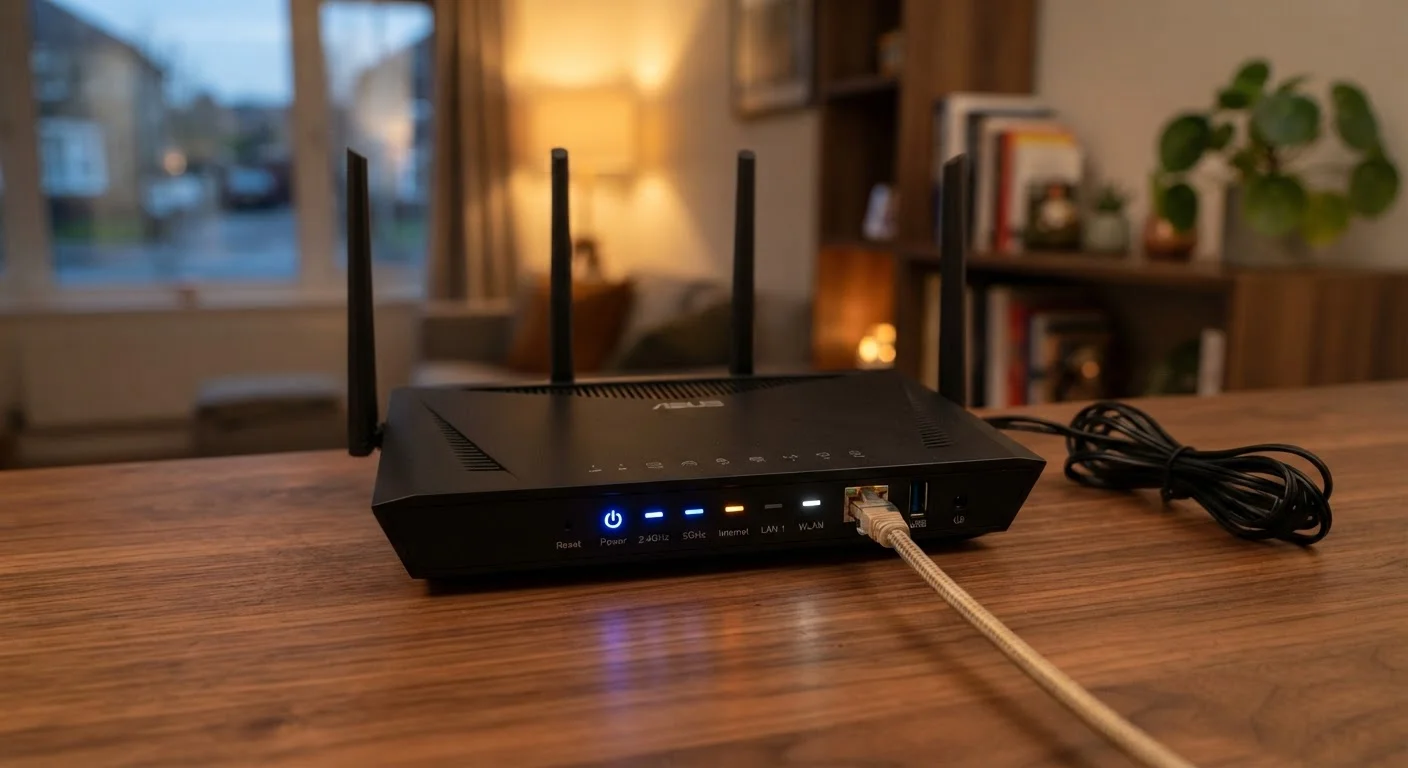
Most consumer routers include lights for power, internet, 2.4 GHz Wi-Fi, 5 GHz Wi-Fi, and at least one LAN port, though higher-end models may have more.
~60 sec
Time to wait after rebooting before diagnosing
Most routers need a full minute to re-establish an internet connection after being power-cycled - judging lights before then can lead to false alarms.
- Power light: Solid means the router is on and healthy. A blinking power light can indicate the router is booting up or installing a firmware update - give it a few minutes before worrying.
- Internet (or WAN) light: This is the most important one. Solid green or white = connected to your ISP. Orange, red, or off = no internet signal reaching the router. This light does not tell you whether your Wi-Fi is working - only whether the incoming internet connection is live.
- Wi-Fi lights (2.4 GHz / 5 GHz): Blinking indicates active data transmission, which is completely normal. A solid light means the band is broadcasting but idle. No light may mean that band is disabled in settings.
- LAN lights: One per ethernet port. They blink when a wired device is actively sending or receiving data. If a port you're using shows no light, the cable may be faulty or not fully seated.
- WPS light: Only active during the brief pairing process. If it's blinking at an unexpected time, a pairing session may have been triggered accidentally - it will time out on its own.
Color Codes: What Green, Orange, Red, and White Usually Mean
Colors are the quickest signal, but they're not standardized across the industry. Here's the general pattern you'll find on most consumer routers:
| Color | What It Typically Means |
|---|---|
| Solid green / white / blue | Normal operation |
| Blinking green / white | Active data transfer (normal) |
| Solid or blinking orange/amber | No internet connection or partial signal |
| Solid red | Error state - usually no ISP connection |
| No light | Off, unpowered, or disabled band/port |
When in doubt, your router's quick-start card or the manufacturer's support site will have the definitive color guide for your specific model. A quick search for your router's model number plus "LED meanings" will usually surface it immediately.
Keep Your Router's Manual Handy
Take a photo of the LED legend printed on your router's quick-start card and save it to your phone's photos app. When something looks odd months from now, you'll have the exact color meanings for your specific model without digging through drawers or searching online.
What to Do When a Light Looks Wrong
Before assuming the worst, work through these steps in order:
- Reboot your modem and router. Unplug both devices, wait 30 seconds, plug the modem in first, let it fully connect (about 60 seconds), then plug in the router. This resolves the majority of abnormal light states.
- Check physical connections. A loose coax cable at the modem or a half-inserted ethernet cable is a surprisingly common cause of a red internet light.
- Check your ISP's status page or app. If your internet light is red and your cables are fine, the outage is likely on your provider's end - not something you can fix yourself.
- Look up the light in your manual. If the light pattern isn't listed above, find your router's model number (usually on a sticker on the bottom) and search the manufacturer's support page.
If you want to dig further into what your router is doing internally, our guide on your router's settings page walks through the admin panel in plain English. And if your Wi-Fi light looks fine but certain rooms still have weak signal, Wi-Fi dead zones may be the real issue.