
Why Wi-Fi Dead Zones Happen
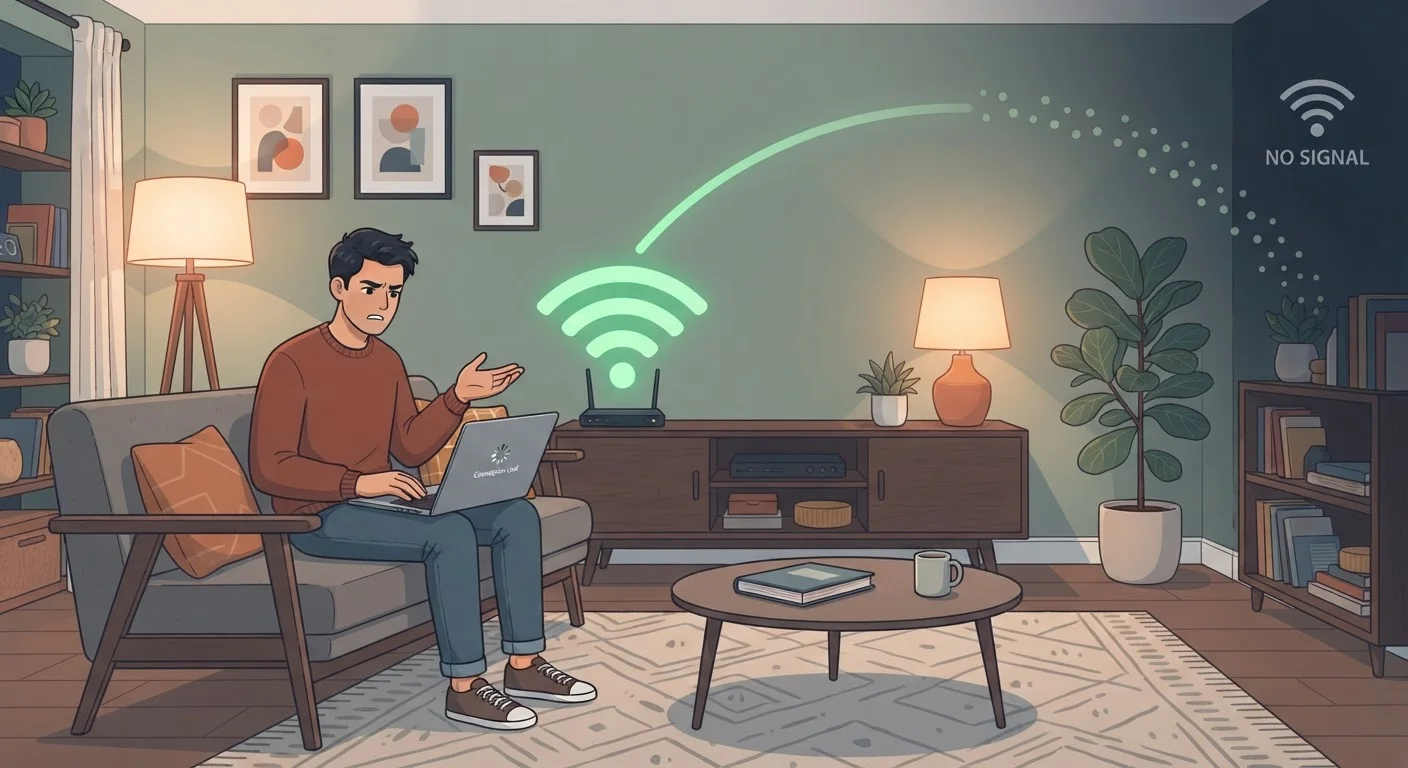
A Wi-Fi dead zone is any spot in your home where the wireless signal is too weak to be reliable - video buffers, pages time out, or the device drops the connection entirely. The frustrating part is that dead zones don't always have an obvious cause.
The most common culprit is simple distance. Wi-Fi signals lose strength as they travel, and a single router placed at one end of a larger home may not reach the other end effectively. But distance isn't the whole story.
Physical materials between your router and your device absorb and scatter the signal. Concrete walls, brick, tile, and metal framing are among the worst offenders. Even a large fish tank filled with water can act as a signal barrier. Multi-story homes are especially prone to dead zones on floors above or below the router.
Interference from neighboring networks, cordless phones, microwaves, and baby monitors can also degrade performance in specific areas. If you live in an apartment building, dozens of overlapping networks compete for the same wireless channels. Understanding the difference between the 2.4 GHz and 5 GHz bands - and which one your device is using - is a key part of diagnosing these problems. Our guide on what 2.4 GHz vs. 5 GHz actually means for your home Wi-Fi breaks this down in plain language.
Start With the Free Fixes First
Many dead zone problems are solved simply by moving the router to a more central location or switching the wireless channel - no new hardware required. Work through the repositioning and settings steps before spending money on extenders or a mesh system. You may be surprised how much a few feet of router placement can change coverage.
What You'll Need Before You Start
Before making any hardware purchases, gather the basics and do a quick audit of your current setup.
What you will need
Also check your router's indicator lights. Unusual blinking patterns can signal a deeper issue rather than a placement problem. Our article on what the lights on your Wi-Fi router are actually telling you can help you read those signals correctly before you start troubleshooting.
Steps to Eliminate Your Wi-Fi Dead Zone
Work through these steps in order - many dead zones are resolved before you ever need to buy new hardware.
Map where the dead zones actually are
Walk through your home with a phone or laptop and note which rooms or spots have noticeably slow speeds or dropped connections. A free Wi-Fi analyzer app can show you signal strength in dBm - readings closer to 0 are stronger; anything below -70 dBm is generally considered poor for everyday use.
Reposition your router
Move your router to a central, elevated location in your home - not tucked in a cabinet, not on the floor, and not in a corner room. Wi-Fi signals broadcast outward in all directions, so central placement gives the best even coverage. Keep it away from microwaves and cordless phone bases, which can cause interference on the 2.4 GHz band.
Update your router's firmware
Log into your router's admin panel and check for firmware updates. Manufacturers release updates that can improve signal stability, security, and channel management. The process varies by router model - look for a "Firmware Update" or "Software Update" option in the settings menu.
Change your wireless channel
Within your router's admin panel, find the wireless settings and try changing the channel manually. For 2.4 GHz networks, channels 1, 6, and 11 don't overlap with each other - use a Wi-Fi analyzer app to see which channels nearby networks are using, then pick the least congested one. The 5 GHz band has more available channels and is typically less crowded.
Add a Wi-Fi extender or access point
If repositioning doesn't solve the problem, a Wi-Fi extender (also called a range extender or repeater) can rebroadcast your existing signal into a dead zone area. Place it halfway between your router and the problem area - not inside the dead zone itself, where it would receive too weak a signal to rebroadcast effectively. A wired access point, connected to your router via an Ethernet cable, is a more reliable but more complex alternative.
Consider a mesh Wi-Fi system for larger homes
A mesh network uses multiple nodes placed around your home that communicate with each other to create a single, unified network. Unlike extenders, mesh nodes work together rather than just repeating a signal - this generally results in better performance, especially in homes over 2,000 square feet or those with multiple floors. Setup typically involves an app and takes 20-30 minutes.
If you're still experiencing disconnections after addressing coverage, the issue may be related to how your smart devices interact with the network. Our piece on why smart home devices keep disconnecting explores those specific causes.
Extenders Can Slow Your Network If Misplaced
A Wi-Fi extender placed too far from the router will receive a weak signal and simply rebroadcast that weakness. This often makes performance in the dead zone worse than having no extender at all. Always place an extender where it still receives a strong signal from the router - ideally with at least two bars of connection strength.