
How Encryption Actually Works
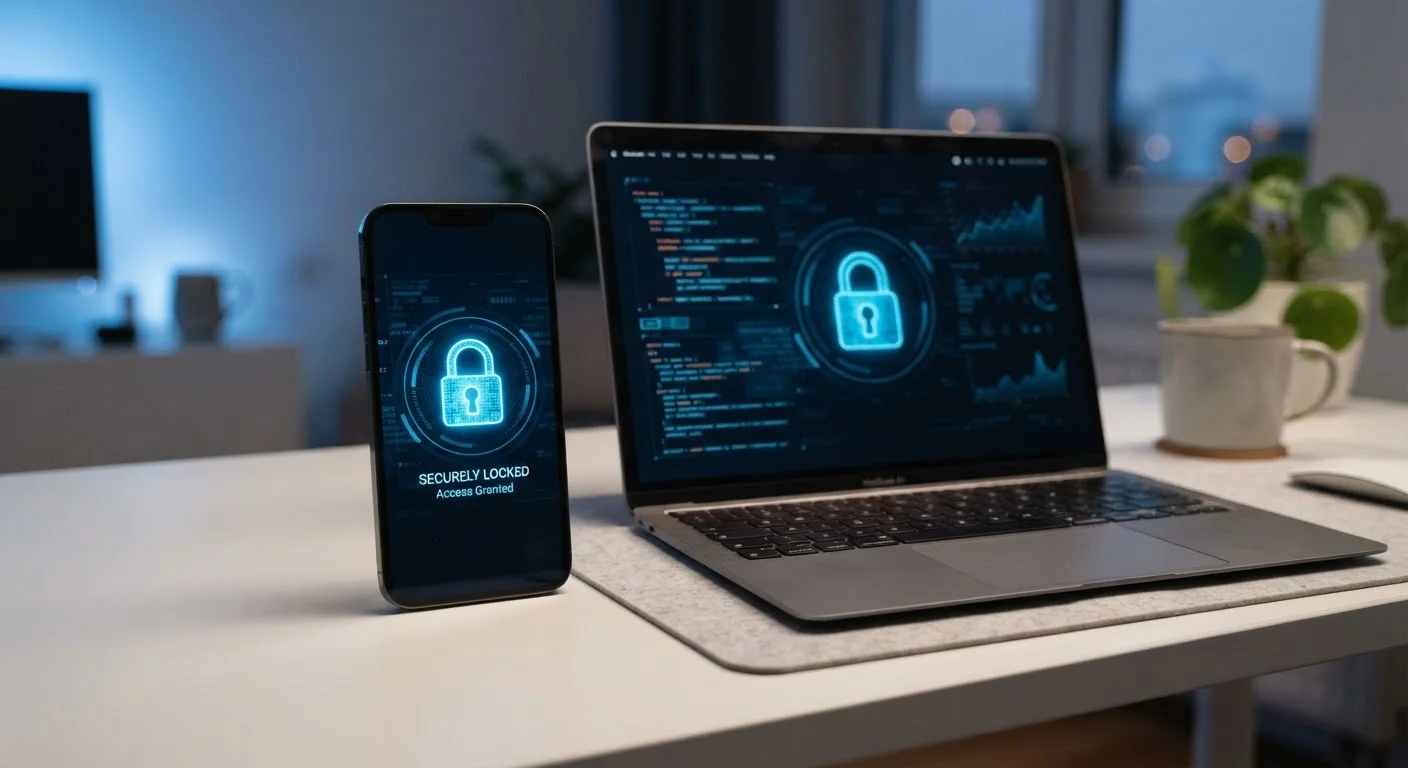
Encryption takes the files, photos, messages, and settings stored on your device and converts them into a scrambled format - called ciphertext - that looks like meaningless noise to anyone without the decryption key. That key is derived from your passcode or login password. When you unlock your device, the data unscrambles in real time, invisibly.
Here's the practical implication: if your laptop is stolen while it's powered off and password-protected with encryption enabled, the thief cannot extract your files by removing the hard drive and plugging it into another computer. The data simply won't make sense without your credentials.
This is fundamentally different from just setting a password on a device. A password alone can sometimes be bypassed at the hardware level. Encryption makes the underlying data itself unreadable, adding a much deeper layer of protection.
“Encryption is the most important privacy-preserving technology we have. It protects your data from criminals, hackers, and unauthorized access - it is a tool for safety and security.”
— Bruce Schneier, Security technologist and author on cryptography and digital privacy
What's Encrypted on Your Devices Right Now
iPhones and iPads: Apple has enabled full device encryption by default since iOS 8. The moment you set a passcode, your device is encrypted. Apple calls this data protection, and it covers nearly everything stored locally - photos, messages, app data, and health information.
Android phones: Most Android devices running Android 6.0 or later encrypt storage automatically. Some budget models or older devices may require you to enable it manually in Settings under Security.
Windows laptops: Devices running Windows 10 or 11 Home may use a feature called Device Encryption if your hardware supports it. Windows Pro editions include BitLocker, a more robust tool. To check, search for "Device Encryption" in your Windows Settings.
Macs: Apple's FileVault encrypts the entire startup disk. On Macs with Apple Silicon chips (M1 and later), encryption is always on. On Intel Macs, FileVault should be enabled manually in System Settings under Privacy & Security.
~96%
Android phones encrypted by default
Google has required full-disk or file-based encryption on Android devices since Android 10, covering the vast majority of devices shipping today.
6-digit PIN
Minimum recommended passcode length
Security researchers generally advise at least a six-digit PIN, with an alphanumeric passphrase offering substantially stronger protection for sensitive devices.
What Encryption Doesn't Protect
It's important to be clear about where encryption's protection ends - because that boundary trips up many people.
Encryption protects data at rest - meaning files sitting on your device when it's locked or powered off. It does not protect:
- Data in transit: When you browse a website or send an email, that data travels over the internet. Network-level encryption (HTTPS) handles that separately. On an unsecured network, your transmitted data may be exposed - learn more in our article on public Wi-Fi risks.
- Logged-in accounts: If someone knows your email password and logs in from their own device, encryption on your phone won't help. That's why pairing encryption with two-factor authentication matters.
- Malware already on your device: If malicious software is running while your device is unlocked, it can read your files just like you can - encryption is no defense against that.
Think of encryption as a vault for your device's contents. It's powerful, but it works alongside other safeguards, not instead of them. A password manager and strong, unique passwords remain essential companions.
Making Sure Your Encryption Is Actually Working
The most common reason encryption fails to protect someone isn't a technical flaw - it's a weak PIN or passcode. A six-digit PIN is far easier to guess or brute-force than a longer alphanumeric passphrase. If your encryption key is derived from "1234," the protection is minimal.
Use a Passphrase Instead of a PIN
Switching from a numeric PIN to an alphanumeric passphrase dramatically increases the strength of your encryption. On an iPhone, go to Face ID & Passcode > Change Passcode and select "Custom Alphanumeric Code." On Android, look under Security settings for password options. A short, memorable phrase is far harder to crack than any six-digit number.
Beyond a strong passcode, keep these habits in mind:
- Enable auto-lock: Set your screen to lock after one to two minutes of inactivity. An unlocked device is an unencrypted device from a practical standpoint.
- Check your laptop settings: Verify that BitLocker or FileVault is actually turned on - don't assume it's enabled by default on older hardware.
- Store your recovery key safely: BitLocker and FileVault generate a recovery key when first set up. Store it somewhere secure and offline, such as a printed copy in a safe location. Losing this key with no backup means losing access to your data permanently.
- Keep software updated: Encryption implementations can have vulnerabilities. Keeping your operating system current ensures you benefit from any security patches.