
What Two-Factor Authentication Actually Is
Imagine your bank account is protected by a locked door. Your password is the key - but what if someone copied that key without you knowing? Two-factor authentication (2FA) is a second lock that a thief cannot open even with a perfect copy of the first key.
More precisely, 2FA requires you to prove your identity in two distinct ways before gaining access to an account. The first factor is almost always your password - something you know. The second factor is something you have (like your phone) or something you are (like your fingerprint). Both must be present at the same time, which is what makes 2FA so effective against the most common type of account takeover: the stolen or guessed password.
Authentication factor
A category of evidence used to verify your identity. Common categories are something you know (a password), something you have (a phone), and something you are (a fingerprint).
Two-factor authentication (2FA)
A login security method that requires proof of identity from two separate categories, so that stealing just a password is not enough to gain access.
Authenticator app
A phone application that generates short, time-sensitive codes used as a second verification step during login, without relying on text messages.
Backup codes
A set of one-time-use codes provided when you set up 2FA, which let you regain access to your account if you lose your primary verification device.
Phishing
A scam where attackers impersonate a trusted service - often via email or a fake website - to trick you into handing over your login credentials.
Hardware security key
A small physical device that serves as a second login factor, plugged into a port or tapped against a phone, offering strong resistance to remote attacks.
If you're working through a broader security review, our personal online security audit checklist covers how 2FA fits alongside passwords, privacy settings, and more.
How the Three Types of Verification Work
Most 2FA methods fall into three categories, each with different trade-offs between convenience and protection.
- SMS text codes: After entering your password, the service sends a short numeric code to your phone via text message. You type that code to complete login. It's widely supported and easy to set up, but text messages can be intercepted in certain attacks.
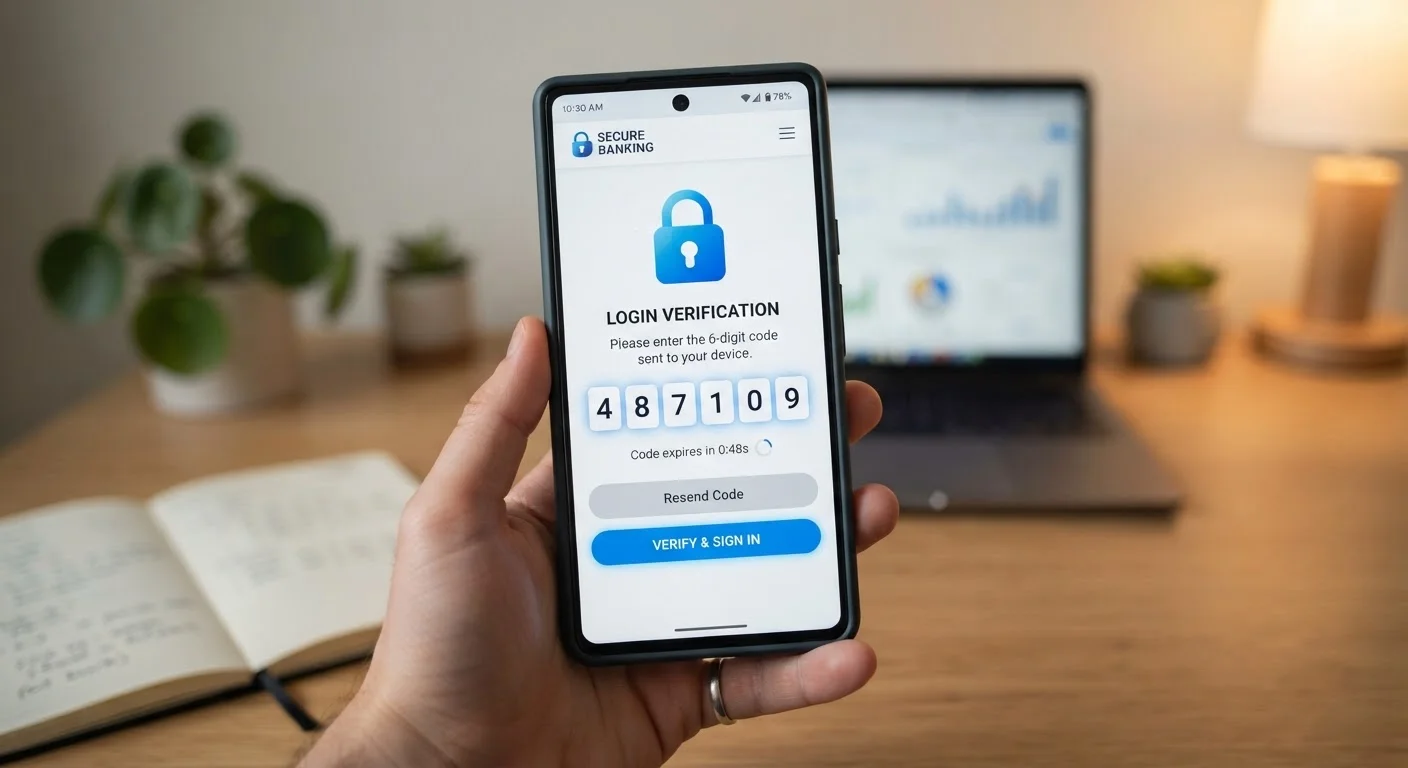
- Authenticator apps: An app on your phone generates a new six-digit code every 30 seconds. You open the app, copy the current code, and enter it. Because the code is generated locally and never travels over a phone network, it's harder for attackers to intercept.
- Hardware security keys: A small physical device - roughly the size of a USB drive - that you plug in or tap against your phone. This is the most phishing-resistant option, often used by people with very high-security needs.
For most everyday users, an authenticator app offers a practical middle ground of strong protection and ease of use. Our article comparing SMS codes and authenticator apps breaks down the differences in detail.
Start With an Authenticator App
If your service supports it, choose an authenticator app over SMS when setting up 2FA. Apps generate codes locally on your device and are not vulnerable to SIM-swapping attacks that can redirect text messages. Most are free and take only a few minutes to configure.
Which Accounts Should Have 2FA Turned On
You don't have to enable 2FA everywhere at once - but some accounts carry enough risk that they should be prioritized.
- Email: Your inbox is the master key to your digital life. Password reset links for every other service land here. If an attacker controls your email, they can access almost everything else.
- Banking and financial accounts: Direct access to your money makes these an obvious high-value target.
- Social media: Hijacked accounts are used for fraud, spam, and identity theft - and recovering them can be a slow, frustrating process.
- Cloud storage and work accounts: These often hold sensitive personal documents or professional data.
Lower-stakes accounts - a newsletter subscription, a loyalty card app - can wait. Start where the consequences of a breach would be most serious.
How to Enable 2FA: What to Expect
The setup process varies slightly by service, but the general path is consistent across most major platforms.
- Go to your account's Settings or Security section.
- Look for an option labeled Two-Factor Authentication, Two-Step Verification, or Login Security.
- Choose your preferred second factor - SMS or an authenticator app is offered by most services.
- Follow the on-screen prompts to link your phone or scan a QR code with your authenticator app.
- Save the backup codes the service provides. These are one-time codes that let you regain access if you ever lose your phone.
Keep Backup Codes Somewhere Physical
When a service generates backup codes for you, resist the urge to save them only in a digital file on the same device you use for 2FA. A printed copy stored in a safe place - a home filing cabinet, for example - ensures you can access them even if your phone is lost or broken.
Pairing 2FA with strong, unique passwords gives you a much more robust defense. Our guide on what a password manager actually does explains how to handle passwords without memorizing dozens of them.
Common Concerns - and Honest Answers
It's natural to have reservations before changing a security habit. Here are the most common hesitations - answered plainly.
- "It sounds complicated."
- Most people complete setup in under five minutes. The services that offer 2FA have made it as guided as possible, walking you through each step with clear instructions.
- "What if my phone dies or I lose it?"
- This is exactly why backup codes matter. Store them somewhere offline - a printed copy in a drawer works fine. Many services also let you add a secondary phone number or email as a backup verification method.
- "I don't want the hassle every time I log in."
- Most platforms let you trust a personal device for a set period. You'll only be prompted for the second factor on new or unrecognized devices, which is precisely when extra protection is most needed.
For a broader look at keeping your devices secure day-to-day, keeping everyday devices secure without becoming a tech expert is a practical next read.