
The Modem: Your Home's Front Door to the Internet
The modem (short for modulator-demodulator) is the device that physically connects your home to your internet service provider, or ISP. Your ISP - a cable, fiber, or DSL company - sends a signal through a cable, phone line, or fiber-optic line into your home. The modem's job is to translate that signal into something your home's devices can actually understand.
Without a modem, there is no internet connection, period. Think of it as the front door of your home network: everything coming in from the outside world passes through it first.
ISPs often rent you a modem as part of your service plan. Purchasing a compatible modem outright can eliminate that monthly rental fee, but you'll want to confirm compatibility with your provider before buying. For a deeper dive into how signals travel from your ISP all the way to your screen, see our comprehensive home network guide.
~90%
U.S. households with home internet access
According to the Pew Research Center, roughly nine in ten American adults have broadband or internet access at home.
15-25+
Average connected devices per U.S. household
Research from Deloitte's Digital Media Trends survey estimates the average American household connects more than 15 devices to its home network.
$10-15/mo
Typical ISP modem rental fee
Many ISPs charge a monthly equipment fee for a rented gateway or modem, which can add up to over $150 per year.
The Router: Traffic Director for Your Devices
Once your modem brings internet into your home, the router takes over. Its primary job is to distribute that single internet connection to all the devices in your home - your phone, laptop, smart TV, gaming console, and more - simultaneously.
The router assigns each device its own local address (called an IP address) so data packets know where to go. It also creates your Wi-Fi network: the name and password you see when connecting a new device are controlled by the router, not the modem.
Routers also provide a basic layer of security by acting as a firewall between your devices and the wider internet. You can customize a surprising number of settings through the router's admin page - things like parental controls, guest networks, and device priorities. Our guide on what your router's settings page can actually do walks through the most useful options in plain language.
Place Your Router Centrally for Best Coverage
Router placement makes a bigger difference than most people realize. Positioning your router in a central, elevated location - rather than tucked in a corner or inside a cabinet - helps the Wi-Fi signal reach more of your home evenly. Keep it away from microwaves and cordless phones, which can interfere with the 2.4 GHz band.
Gateway Devices, Mesh Systems, and Extenders
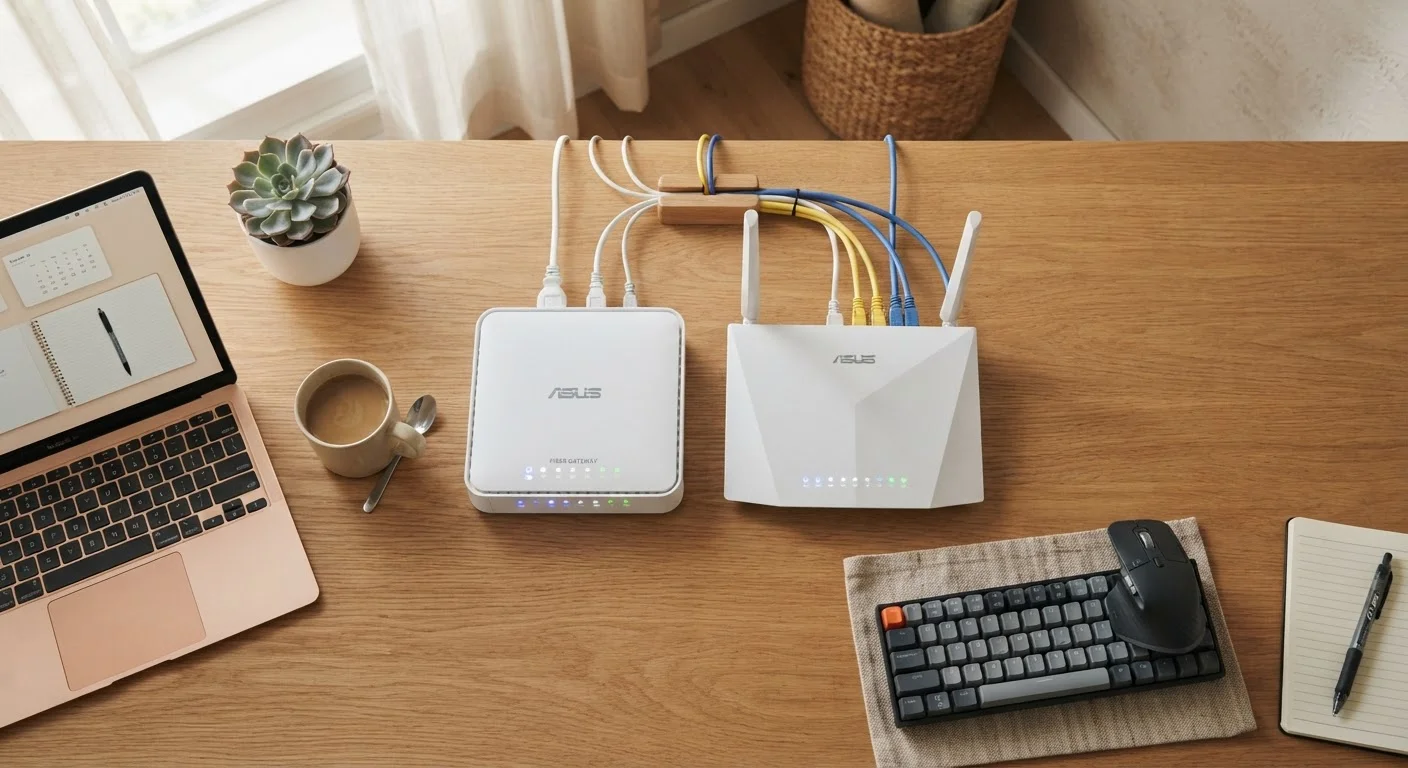
Many ISPs provide a gateway - a single box that combines modem and router functions. Gateways are convenient, but some users find that separate, dedicated devices offer better performance and more control.
For larger homes or spaces with coverage gaps, a mesh Wi-Fi system may be worth considering. Instead of one router, a mesh setup uses two or more nodes placed around your home. They communicate with each other to create a single, seamless network - no more dead zones in the back bedroom or basement.
A simpler option is a Wi-Fi extender (also called a repeater or booster), which picks up your existing signal and rebroadcasts it. Extenders are typically less expensive than mesh systems but can create a separate network name, requiring manual switching as you move around your home.
Understanding how your router broadcasts on different frequency bands can also help you get better performance from existing hardware. See our explanation of what 2.4 GHz vs. 5 GHz actually means for your Wi-Fi for practical guidance on which band suits which devices.
A family streams movies on their smart TV in the living room while their kids play online games on laptops upstairs, all at the same time.
A homeowner notices that Wi-Fi works perfectly in the kitchen but drops out entirely in the home office at the far end of the house.
An apartment renter receives a monthly bill that includes a $15 equipment rental fee for a modem supplied by their ISP.
A user connects a laptop directly to the modem with an ethernet cable during a video call that keeps cutting out over Wi-Fi.
Reading the Signals: Lights, Cables, and Troubleshooting
Both modems and routers communicate their status through indicator lights - solid, blinking, or colored in ways that correspond to specific conditions. A solid green light typically means everything is working normally. An orange or red light often signals a problem with the connection to your ISP or with the device itself.
If your internet goes out, the standard first step is a power cycle: unplug your modem and router from power, wait about 30 seconds, then plug the modem back in first. Wait for it to fully connect before powering on the router. This clears temporary errors and re-establishes your connection with your ISP.
For a full guide to interpreting indicator lights, check out what the lights on your Wi-Fi router are actually telling you. And if you'd like to explore other common household tech in the same plain-language style, the Everyday Devices hub covers everything from smart plugs to streaming sticks.
When to Call Your ISP vs. Troubleshoot Yourself
If a full power cycle doesn't restore your connection, check whether your ISP has a reported outage in your area - most providers list service status on their websites or apps. If there's no outage and the problem persists, the issue may lie with the modem's connection to the network, which typically requires ISP support rather than anything you can fix on your own.