
The Big Picture: How Internet Gets Into Your Home
Most people think of their home internet as a single invisible thing. In reality, it's a short chain of hardware, each piece with a distinct job. Understanding that chain makes troubleshooting faster, setup decisions clearer, and security easier to manage.
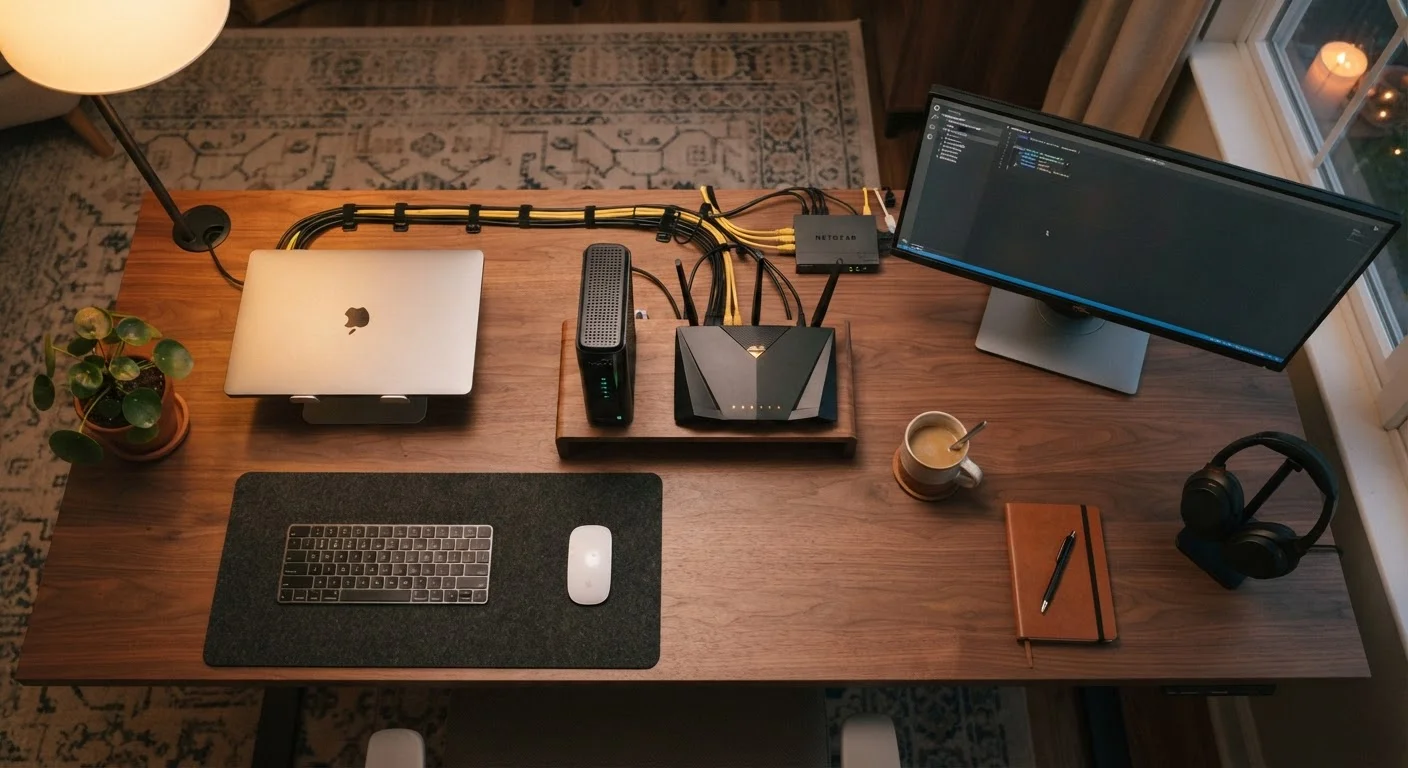
Here's how it flows: your internet service provider (ISP) - a cable, fiber, or phone company - runs a physical line to your home. That line carries a signal your devices can't use directly. A modem translates that signal into standard network data. A router then takes that data and distributes it - wired or wirelessly - to every phone, laptop, and smart TV in your home.
For a plain-English look at how these two devices compare side by side, see our guide to routers and modems. This article goes deeper, covering every component in the chain and what to do when something breaks.
What a Modem Actually Does
The word modem is short for modulator-demodulator. Its job is translation: it converts the signal coming from your ISP's infrastructure (coaxial cable, fiber optic, or phone line) into the digital language that routers and computers understand, called Ethernet.
Modems are matched to your connection type. A cable modem works with coaxial cable internet. A DSL modem works with phone-line-based service. Fiber connections often use a device called an ONT (Optical Network Terminal), which performs a similar translation role. Your ISP usually specifies which type you need.
When troubleshooting, always test with a wired Ethernet connection first - this instantly tells you whether a problem is with your Wi-Fi specifically or with your internet connection as a whole.
Wi-Fi adds variables like signal strength, interference, and band switching. Eliminating those variables narrows the diagnosis immediately.
Position your router at roughly the center of your home and elevate it off the floor - Wi-Fi signals radiate outward and slightly downward, so height improves overall coverage.
Physical placement is one of the most overlooked factors in Wi-Fi performance and costs nothing to improve.
One Ethernet port on the back of the modem feeds a single connection to your router. The modem itself doesn't create a network - it just brings the internet to your door. That's an important distinction: if your modem has a problem, nothing in your home has internet, regardless of how good your router is.
What a Router Actually Does
Once the modem delivers internet to your home, the router takes over. Its primary job is to manage a local area network (LAN) - essentially a private address system that lets dozens of devices share one internet connection simultaneously.
Every device on your network gets assigned a private IP address by the router using a protocol called DHCP. When your laptop requests a webpage, the router keeps track of which device asked for what, routes the response back correctly, and does this for every device at once.
Routers also broadcast your Wi-Fi signal. The wireless part of your router is technically called a wireless access point, and it operates on radio frequencies - typically 2.4 GHz and 5 GHz. Understanding which frequency suits which device is worth knowing; see our explainer on 2.4 GHz vs. 5 GHz for a practical breakdown.
Routers also include a built-in firewall that acts as a gatekeeper, blocking unsolicited incoming connections from the internet - a basic but meaningful layer of protection.
Keep Your Router in the Open
Avoid placing your router inside a cabinet, closet, or behind a TV. Physical obstructions and dense materials like concrete walls can cut your Wi-Fi range significantly. A central, elevated, open spot in your home is almost always the best placement.
Combo Units, Mesh Systems, and Other Variations
ISPs commonly provide a single device called a gateway that combines the modem and router into one box. Gateways are convenient and reduce cable clutter, but they often offer fewer configuration options and may not perform as well as dedicated hardware. If your ISP-provided gateway allows it, you can put it in bridge mode - which disables its routing functions - and connect your own router for more control.
For larger homes or spaces with thick walls, a mesh Wi-Fi system uses multiple access points placed around the home, all communicating with each other to create one seamless network. Unlike traditional Wi-Fi extenders (which create separate networks and require you to manually switch), mesh nodes hand off your device automatically as you move through the home.
Powerline adapters offer another option: they send network data through your home's electrical wiring, useful when running an Ethernet cable isn't practical but a wired-speed connection is needed in a specific room.
Common Problems and What's Actually Causing Them
Most home network issues fall into a handful of categories. Knowing which device in the chain is responsible saves time and frustration.
- No internet on any device: Start with the modem. Check its indicator lights - a solid or blinking "online" or "internet" light usually means the ISP connection is active. For a guide to reading those lights, see our article on what router indicator lights mean.
- Slow speeds throughout the home: This is often an ISP issue or an overloaded modem. Run a speed test while connected directly to the modem via Ethernet to isolate whether the router is the bottleneck.
- Weak Wi-Fi in certain rooms: The router's placement and the building's materials both matter. A central location, away from walls and interference sources (microwaves, cordless phones), improves coverage. A mesh system may be warranted for larger spaces.
- One device can't connect: If every other device works, the problem is with that specific device - not the network. Forgetting the network and reconnecting, or checking for IP address conflicts, usually resolves it.
A simple reboot - modem first, then router, waiting 30 seconds between each - clears the majority of temporary glitches and is always a sound first step.
Security Basics Every Home Network Needs
A home network that's wide open is a meaningful risk. The good news is that the most impactful protections are straightforward to apply.
Change the default router admin password. Every router ships with a default username and password (often something like "admin/admin"), which are publicly documented. If you've never changed yours, do it today. You access these settings through your router's settings page - our tour of router settings walks through exactly where to find them.
Use WPA3 or WPA2 encryption for your Wi-Fi network. These protocols encrypt the data traveling between your devices and the router. Avoid WEP, which is outdated and easily compromised.
Set a strong, unique Wi-Fi password - not your address, pet's name, or phone number. A passphrase of random words is both memorable and hard to crack.
Create a guest network for visitors and smart home devices. This keeps those devices isolated from your primary network, limiting the damage if any one of them is compromised.
For a systematic review of your setup, our home network security checklist covers every common gap in plain steps. Your network doesn't need to be complex to be secure - a few intentional choices make a substantial difference.